










Lion on the Line
English

iPhone and iPad app

A village animal callsyour child for help.

Sheriff Leo or one of his neighbors phones your child and asks for a hand with something that needs doing anyway, like finishing dinner or putting the toys away.

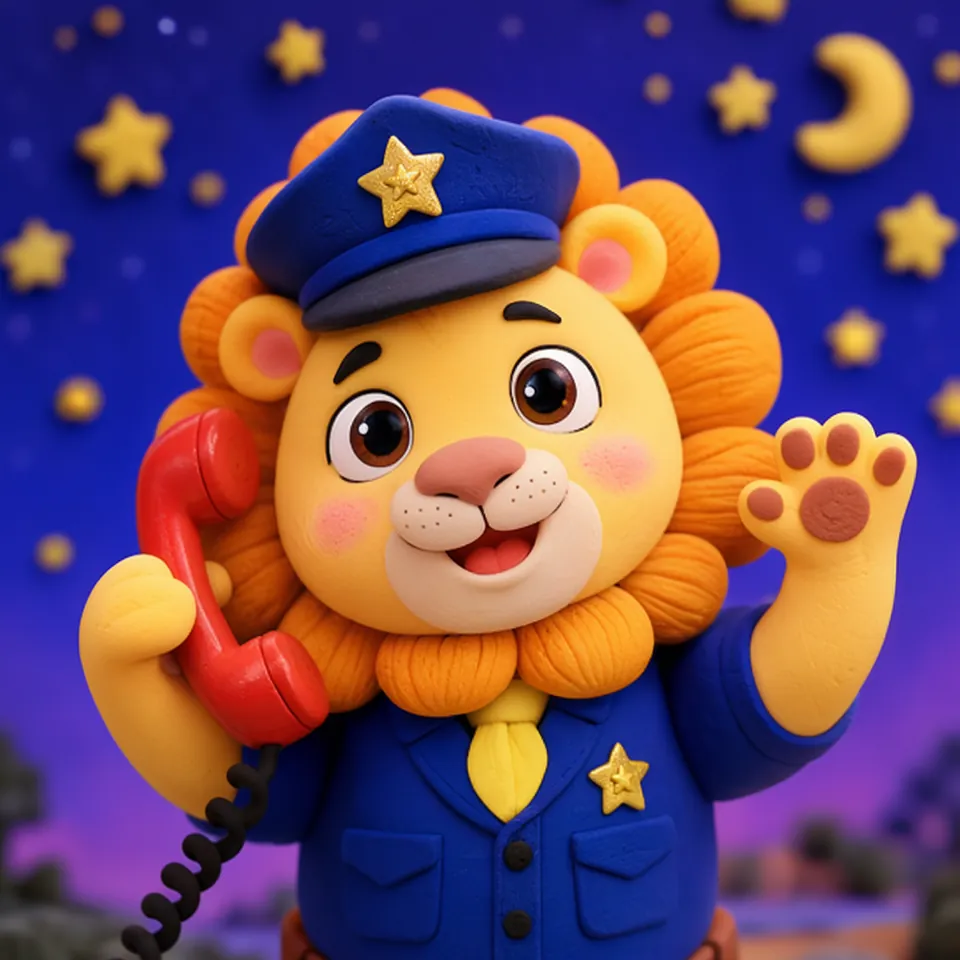
Sheriff Leo: a clay lion in a police cap, holding a red phone and waving, under a night sky

How it works

  1. Pick a character and a task

    On the home screen, pick a character and one of the tasks it handles, such as Sheriff Leo’s Mealtime. Set how many times your child should do it (1 to 5) and when the call comes: now, in 10 seconds or in 30 seconds. Your last choices are kept.

  2. Tap Call

    The device you chose rings with a call from the character. When your child taps Answer, the character explains what it needs help with.

  3. Mark each time your child does it

    Each time, the character cheers and a small object for that task drops onto the screen: a rice ball for Mealtime, a building block for tidying up. When all of them are there, the character says thank you and hangs up.

The app on screen: Sheriff Leo calls about Mealtime; after three times he says thank you and hangs up. The video has sound.

Ten characters

Each character handles one task. Sheriff Leo handles two.

  • Sheriff Leo

    Lion, Sheriff of Forest Village

    Task:

    • Mealtime
    • Tidy up toys
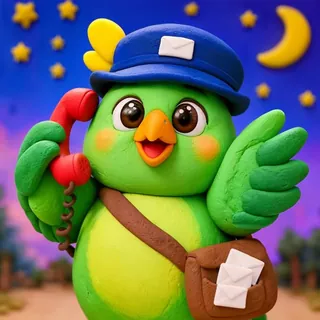
  • Pipi the Mail Carrier

    Parrot, The village mail carrier

    Task:

    • Getting ready to go
    • Wake up
  • Dudu Pockets

    Rabbit, The tidy-up helper with lots of pockets

    Task:

    • Pack the school bag
    • Dirty clothes in the basket
  • Momo of the Bathhouse

    Otter, Keeper of the bathhouse

    Task:

    • Bath time
    • Potty time
  • Chef Baba

    Octopus, The chef with eight arms

    Task:

    • Wash hands
    • Eat your veggies
  • Deng the Night Watch

    Anglerfish, The night watch with a lantern

    Task:

    • Getting ready for bed
    • Screen off
  • Nono Upside-Down

    Bat, A quiet villager on the night shift

    Task:

    • Calm down
    • Nap time
  • Kuro the Ninja

    Crow, A ninja on a mission

    Task:

    • Homework
    • Clear the table
  • Dr. Lili

    Squirrel, The dentist with big front teeth

    Task:

    • Brush teeth
    • Drink water
  • Coco the Stylist

    Poodle, Forest Village's stylist

    Task:

    • Get dressed
    • Nail trim

One phone or two devices

One phone

After you tap Call, the screen goes dark. Put the phone in front of your child; it rings when the time comes.

During the call, a row of empty spots sits at the bottom of the screen, one per time. Each time your child does the task, press and hold the next empty spot for about half a second. To end the call gently, press and hold the faint little icon in the bottom-left corner for 1.5 seconds. This way needs no permissions.

Two devices: one for you, one for your child

Put a second iPhone or iPad near your child. Both need to be on the same Wi-Fi with the app open. Pair them once with a 4-digit code; after that they reconnect by themselves. The two devices talk to each other directly inside your home network, not over the internet.

The call rings on your child’s device, and yours becomes a remote. It shows whether the call is ringing or answered and how many times are done, with three buttons: Did it, Cheer On and End Gently.

If the app is not open on the other device, it does not ring, and no notification is sent.

“Call Mom or Dad” on your child’s device

Your child’s device can be set up as a phone booth: a small booth under the night sky, waiting for the village to call. The screen has one big button, Call Mom or Dad.

When your child presses it, a card pops up on your device and Sheriff Leo tells you your child is looking for you. If the app is not open on your device, Leo tells your child that you seem busy and to try again a bit later. After one press, the button waits 60 seconds.

Sheriff Leo cheering with the phone in his hand, with colored dots around him

What it does not do

  • It is not a real phone call. You and your child do not hear each other.
  • It does not use the microphone or the camera.
  • There is no account to create.
  • No subscription. Sheriff Leo and his two scripts are ready from the start; the other nine characters (two scripts each) and the holiday visitors come with one in-app purchase that you keep.
  • The lines are written in advance and the voices are recorded in advance. The app does not generate anything with AI during a call, and the characters never say your child’s name; they call every child “little one”.
  • The lines do not scare, threaten or promise rewards. If your child taps Later, the call ends and nobody is scolded.

Requirements

Devices
iPhone and iPad
System
iOS 17 or later
App interface
9 languages: English, Español, Deutsch, Français, Português (Brasil), 日本語, 한국어, 繁體中文, 简体中文
Character voices
The same 9, chosen separately from the interface. The first time, you download a voice pack for that language (about 16 to 20 MB); without it, the phone’s built-in voice reads the lines
Internet
Needed once to download a voice pack; calls work offline
Developer
Sona Orbit

Questions

What if my child doesn’t do it?

After 60 seconds with no progress, the character says something like “take your time, I’ll wait”, once per pause. If the task is not finished 3 minutes after answering, the character thanks your child and wraps up, and the times already done are kept.

How do I end a call early, or cancel one that has not rung yet?

With one phone, press and hold the dark screen for 1 second to cancel before it rings. During a call, press and hold the faint little icon in the bottom-left corner for 1.5 seconds and the character wraps up. With two devices, tap End Gently on the remote.

How many calls a day?

Three a day by default; in Settings you can change it to five or no limit. When the limit is reached you can still call. The home screen just mentions it.

Does it ring when the phone is on silent?

Yes. With the silent switch on, the ringtone and the voices still play, at the phone’s volume.

Can I see how often my child did it?

The call history shows how many times each character’s task was completed, and the last 30 calls with date, character, task, times done and how the call ended. It stays on that device and can all be deleted in Settings.

Can an iPad be my child’s device?

Yes. iPhone and iPad can each be your device or your child’s. The two are equal: either one can call the other.

The first time you open the app, three short screens explain how it works. On the last one, pick the language the characters speak and download its voices, then tap Start and make the first call.