How to use the app
This follows the app as it is today. Read it from the first launch onward, or jump to a section from the list.
First launch
The first time you open the app, you see seven short pages, Why practice this way. Swipe or tap Next; Skip is at the top right. Then, with no tour, you practice once.
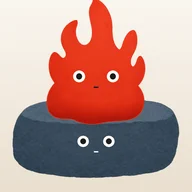
- The screen shows only the flame, the base rock and one line: Hold the flame to begin. Hold for 0.8 seconds, the glow grows, and a 5-second practice starts.
- During those 5 seconds, tap whenever you notice you've drifted. When time is up, the first stone drops. Tap Put in the tower.
- Next it offers one more, a full minute. Tap Done and hold the flame again, or tap Later to skip it.
- Then it asks how long you want to sit from now on: 3, 5, 10 or 15 minutes, Custom, or Untimed. You can change this later in check-in.
- Back on the home screen, a short five-step guide shows one direction at a time, and only moves on once you actually swipe. You can skip it at the top right.
The home screen
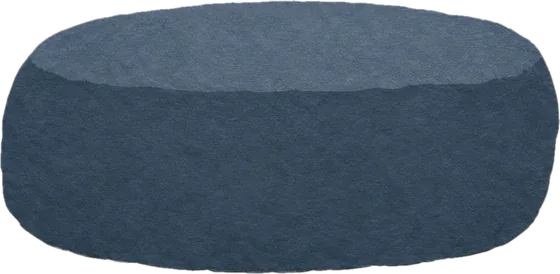
In the middle is today's tower: the flame sitting on the base rock, with today's stones stacked between them. Swipe from the middle of the screen. The very top and bottom edges are left to your iPhone's own gestures.
Outfits: tap an empty spot
A line for today: swipe down from the middle, or tap the top
Guide button: only if you turn it on
Moving: swipe right
Tap the flame or a stone and it reacts
Check-in and settings: swipe left
Records: swipe up from the middle, or tap the little towers
- Tap an empty spot
- The Outfits button appears at the top left, with a small red dot when you have something new. It hides again after about 5 seconds.
- Tap the flame or a stone
- It blinks, shakes, hops or squashes and bounces back, and the others turn to look. They also look around and doze off on their own.
- The level line
- A small line at the bottom shows your level and your minutes. In check-in you can move it to the top or hide it.
- Stones in the background
- Every 300 minutes of practice adds a stone to the background. Over time they pile into hills in the distance.
Still: sitting practice
- Hold the flame for 0.8 seconds. The glow grows, the phone gives a light buzz (you can turn this off), and you've started.
- Sit. Your eyes can close. The screen goes dark, with a faint countdown under the tower. You can hide it in check-in.
- When you notice you've drifted off into other thoughts, tap anywhere on the screen. That records one drift.
- When time is up, the phone buzzes twice, softly. To stop early, hold the flame again.
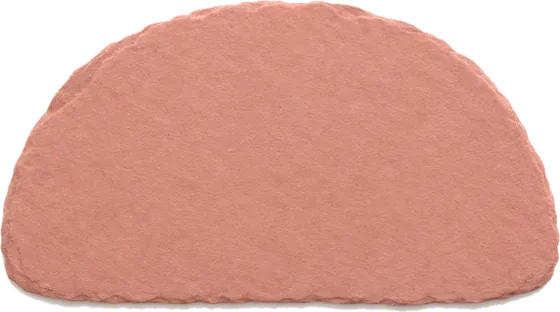
- A rose half-circle drops, with one small bump on its edge for each drift (up to six). The result reads like "5 min · 3 drifts". Add a line if you want, then put it in the tower.
- 3, 5, 10, 15 min
- The usual lengths.
- Custom
- Anywhere from 1 to 120 minutes.
- Untimed
- No timer; it counts up. Hold the flame when you want to stop. If you forget, it ends by itself after three hours.
Change the length in check-in. Drifting is fine; noticing it is the practice.
Moving: practice in daily life
- Swipe right from the home screen. Pick what you're about to do: walking, washing dishes, commuting, eating, brushing teeth, tidying up, or tap Type your own… Anything you type is remembered and shown first next time.
- Choose how long: 5, 10, 15 or 30 minutes, or untimed. Tap Start.
- While you do it, notice whether you're here. When you drift, tap the big Drifted button.
- You can close the app or lock the phone. The lock screen and Dynamic Island show the time, with Drifted and End buttons right there.
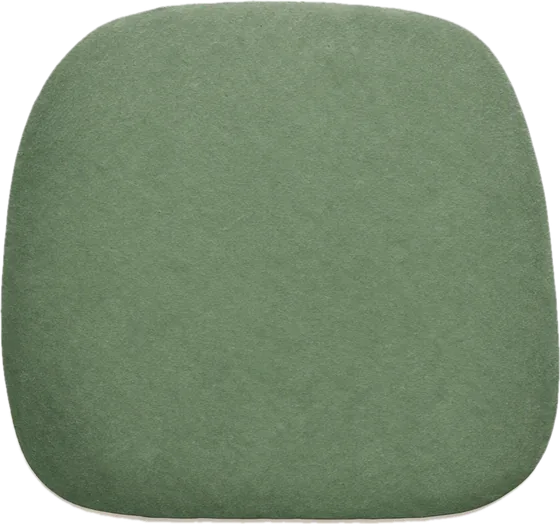
- When time is up or you tap End, the app shows something like "Walking · 12 min · 3 drifts". Tap Keep and a green block drops into today's tower, or tap Don't count to leave no record.
Only moving sessions you keep count toward your minutes.
Closing the day
- After sunset, if you practiced that day, the home screen turns to night and a Close the day button appears at the bottom.
- It asks whether you remembered yourself at some point today. Answer yes or not today. Both buttons are the same size; neither is the right one.
- Add one line if you like, up to 60 characters, or skip it.
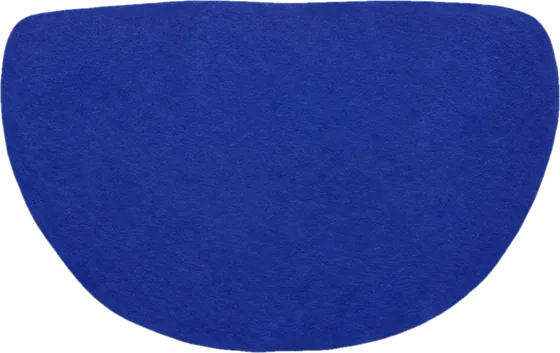
- A blue bowl drops and holds the flame, and everyone closes their eyes from the top down.
A line for today
- Swipe down from the middle of the home screen, or tap the top.
- Today's line is at the top. Tap Save if you like it, or leave it. Tap again to unsave.
- Below are past lines. Switch between All and Saved, and tap a card to open it.
- Tap Decorate to stick items you've earned onto the card. Drag, pinch to resize, tap one and then × to remove it. Up to 8 per card.
- Tap Put on lock screen: your saved lines take turns on the lock screen and Dynamic Island. Next card shows another; Put away closes it.
- Share this line sends it to someone.
Each day's line is chosen on your iPhone by Apple's built-in model. On some days it chooses to say nothing.
Check-in and settings
Swipe left from the home screen. There is no separate settings screen; everything lives here.
- Check-in day
- Pick a weekday. On that day two cards come first: what pulled you away most this week (pick any, or skip), and how long to sit next week. Then tap Settle.
- Length
- 3, 5, 10 or 15 minutes, custom, or untimed.
- Gentle nudges
- Off by default. You can choose one to three a day: a single light tap at a random daytime moment, with no sound.
- Background sound
- Off, low hum, brown noise, hearth fire or cave. Play it only while sitting, or all the time.
- Sound
- Everything, only the characters' voices, or haptics only.
- Show time while sitting
- The faint number under the tower. Can be turned off.
- Light buzz at the start
- One light buzz when the hold starts a sit. Can be turned off.
- Show level on home screen
- Bottom, top, or hidden.
- App icon
- Day or night.
- How to use
- The in-app guide. At the bottom you can put a guide button on the home screen, or walk through the five steps again.
- Why practice this way
- The seven opening pages, again.
- About
- Scroll down for the feedback form, the website and privacy.
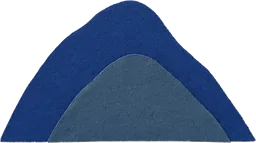
Records
Swipe up from the middle of the home screen, or tap the row of little towers. At the top are your level and how far to the next one. Below are four tabs.
- Towers
- Each month's towers in rows, with today's awake. Tap one to see each stone that day, and turn it into a share card for a day, a week or a month.
- Milestones
- The nine levels: minutes needed, roughly how many days at 15 minutes a day, what each level gives, and the date you got there.
- The road
- This week's three small things (do all three and you get a weekly seal), longer roads (progress toward each item you don't have yet), and firsts.
- The shelf
- Everything you've earned and the day you earned it, plus your weekly seals.
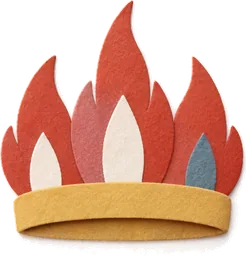
Levels and items
Your sitting minutes plus the moving sessions you keep add up to nine levels. Skipping days never lowers your level or resets anything. When you reach a new level, a quiet page shows what's new, lets you try it on, and lets you share it.
| 1 | Spark | 0 min |
|---|---|---|
| 2 | Lit | 60 min |
| 3 | Small flame | 300 min |
| 4 | Tending | 750 min |
| 5 | Steady flame | 1,170 min |
| 6 | Seated rock | 1,800 min |
| 7 | Unshaken | 2,700 min |
| 8 | Fudo apprentice | 5,475 min |
| 9 | Fudo | 10,000 min |
How you earn things
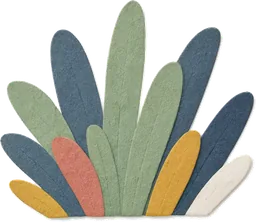 First sit: a tuft of grass
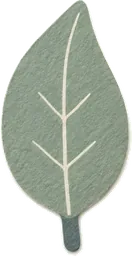 First moving session kept: a leaf
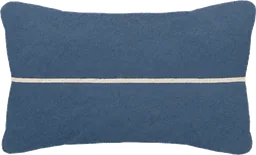 First time closing the day: a small pillow
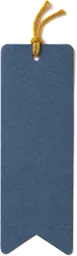
- First saved line: a bookmark
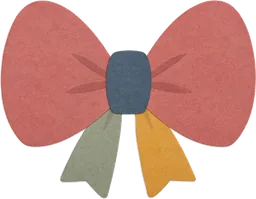 First share: a bow
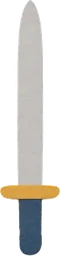
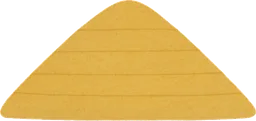 New levels: most things, from glasses and a straw hat to a little sword, a lantern, a robe and a flame crown
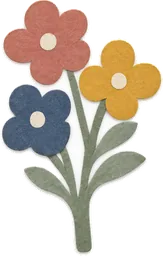 Practicing on 7, 30, 100 and 365 days
 Keeping 10, 50 and 200 moving sessions
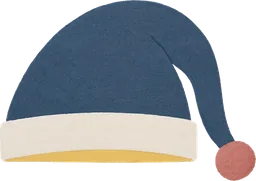 Closing the day 30 and 100 times
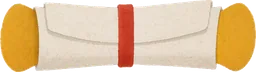 Saving 50 lines
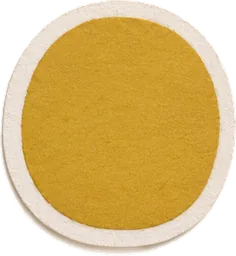 One untimed sit of 30 minutes
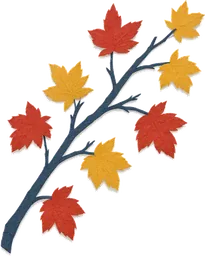 4, 12, 26 and 52 weekly seals: autumn maple, winter snow, spring cherry blossom, summer fireflies
Items come only from practice. None are for sale. The ones you don't have yet sit faintly at the end, with what's left to do.
Outfits
Tap an empty spot on the home screen, then Outfits at the top left. It opens full screen: a small copy of your home screen on top, a drawer with four groups below. Tap once to put something on, tap again to take it off. Changes save by themselves.
- Wear
- Things for the face, head and body. First tap the flame or a stone above to choose who wears it. Then drag on an empty spot to adjust and pinch to resize. Reset position puts it back.
- Props
- A sword, a lantern, moss, little flowers. Tap to add one, drag it anywhere, pinch to resize, tap it and then × to remove it. Place as many as you like.
- Background
- The moon, mountains, stars, the four seasons.
- Character
- Swap the flame: the four-eyed flame, the night flame, the twin flames.
Close the drawer to see the whole screen. When you're done, tap Share to make a My flame card.
Lock screen and Dynamic Island
The moving timer and the line card use iPhone Live Activities.
- If you don't see them, open iPhone Settings, find the app and turn on Live Activities.
- Then go to Settings > Face ID & Passcode and make sure Live Activities is allowed when locked.
- Dynamic Island appears only on iPhones that have one. Other models show it on the lock screen.
Your data and other notes
- Data
- No account. Records, saved lines and outfits stay on this iPhone and are never uploaded. Deleting the app deletes them.
- Feedback
- In check-in, scroll down to About and open Feedback.
- Not a medical service
- Fudo is an everyday steadiness practice, not a medical or mental health service. If you need help, please talk to a doctor or a qualified professional.