
Help
This page follows the app's screens in order, each with a screenshot of that screen, followed by common questions. The auctions and addresses in the screenshots are sample data.
Can't find the answer?sona.orbit.hi@gmail.com
The first time you open it
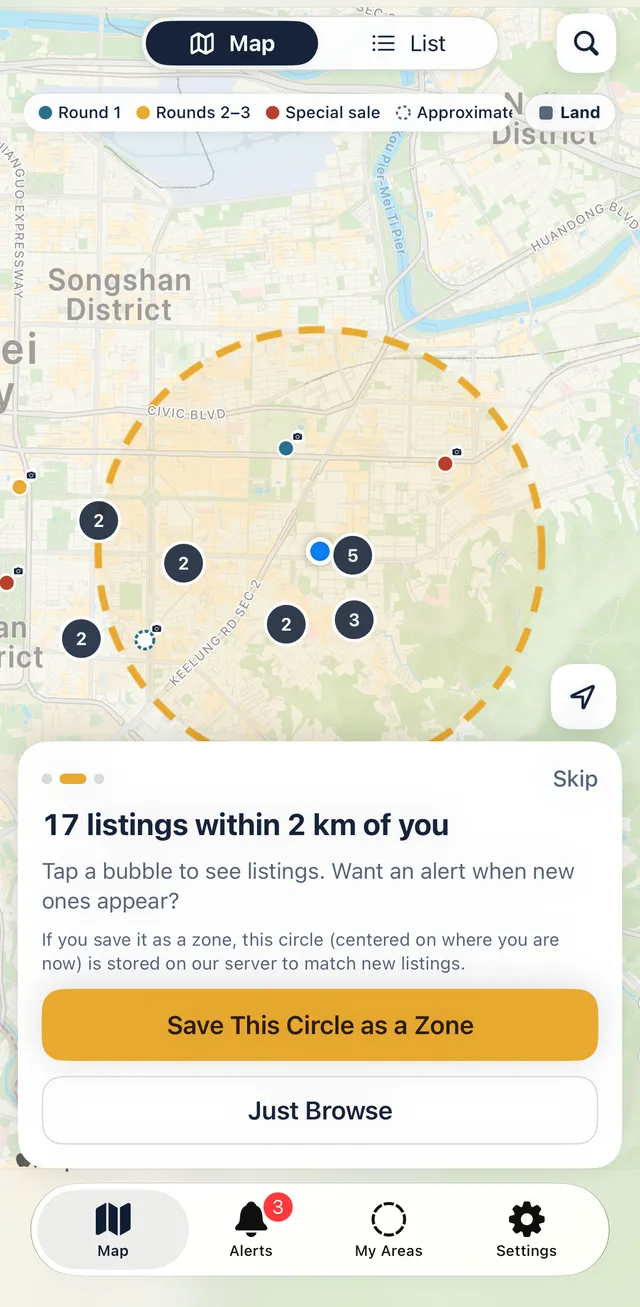
A three-step intro appears below the map. Follow it and your first area is set up in about a minute. Every step has Skip.
- Use My Location moves the map near you. Your location is only used for that; if you would rather not share it, tap Choose a City Instead.
- Make the 2 km around you an area: the intro shows how many auctions are within 2 km. Tap Save This Circle as a Zone, or Just Browse to look around first.
- Turn On Notifications so your iPhone can alert you when a new auction appears. The area is saved either way, and you can turn notifications on later in the iPhone Settings app.
To see the intro again: Settings, then Replay the Intro.
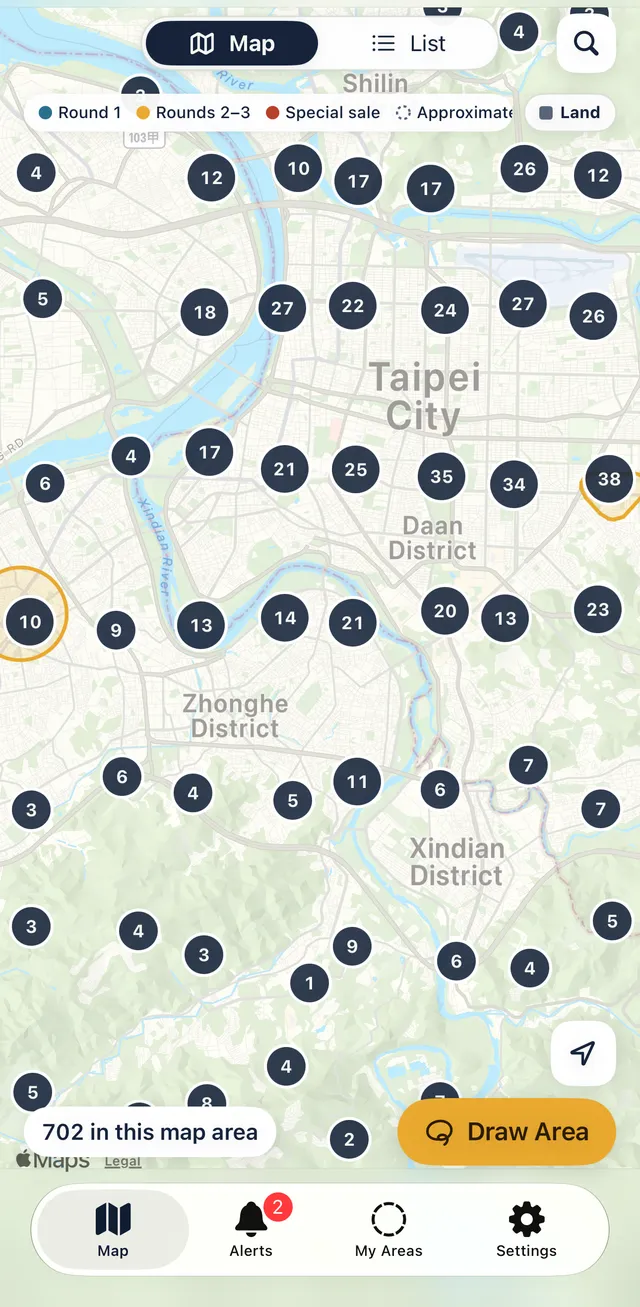
Map
The map is the first thing you see. The number on a bubble is how many auctions are around there. Tap it to zoom in, and tap an auction to open its details.
- Colours: blue is round 1, yellow is rounds 2–3, red is a special sale.
- Only buildings are shown at first. Tap Land at the right of the legend to add land, drawn as squares.
- A pale dashed circle means the location is approximate: the notice has no full address, so Ringside can only place it roughly (see the questions below).
- The magnifying glass at the top right searches for an address, landmark or MRT station; you can also paste the address from a court notice. After the map flies there, it shows how many auctions are within 2 km. Tap Save This Circle as a Zone to make those 2 km an area.
- The bottom left shows how many auctions are in the current map view; the arrow at the bottom right brings you back to your location.
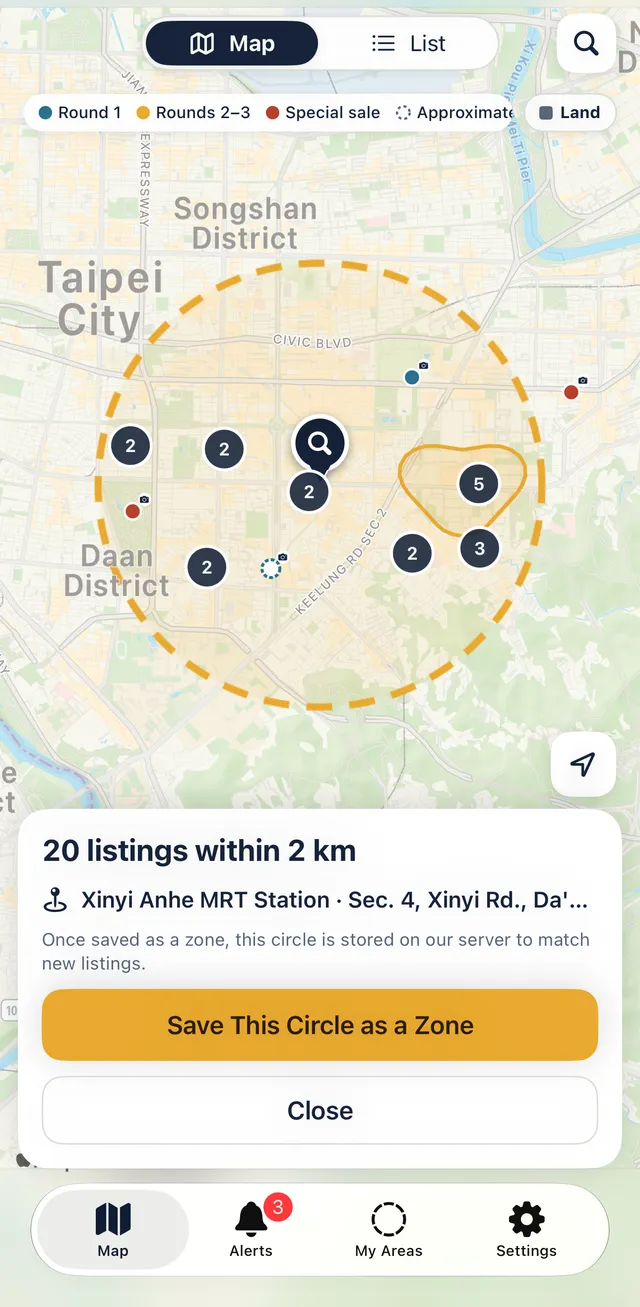
Searching an address
Tap the magnifier at the top right of the map and type an address, landmark or MRT station. You can also paste the full address from a court notice.
- Pick a result and the map moves there, drops a pin and draws a dashed 2 km circle.
- The card shows how many listings are within 2 km; tap Save This Circle as a Zone to keep it.
- With nothing typed, it lists your recent searches. Search is handled by Apple Maps and isn't sent to our server.
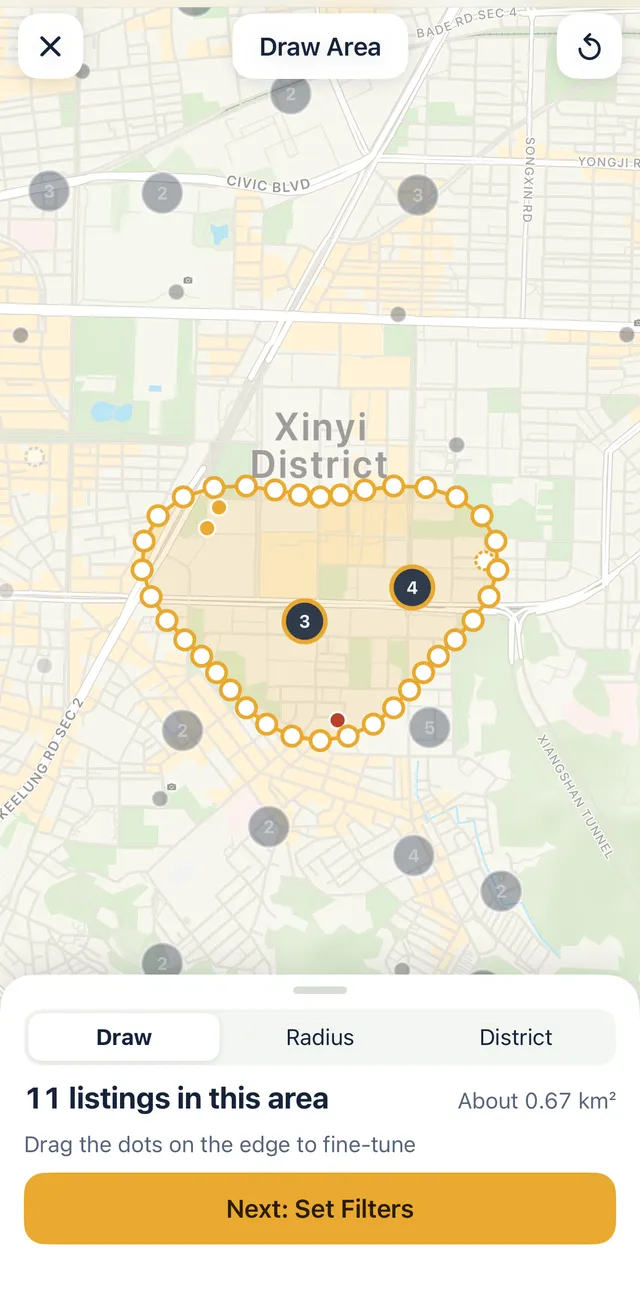
Drawing an area
On the Map tab, tap Draw Area at the bottom right and pick a method:
- Draw: trace the streets with one finger and let go to close the area. Drag the dots on the edge to fine-tune.
- Radius: tap the map to set the center, then drag the dot on the circle.
- District: pick a city and a district.
The panel shows how many auctions are inside and the size of the area. Tap Next: Set Filters, or Redraw at the top right to start again.
Filters
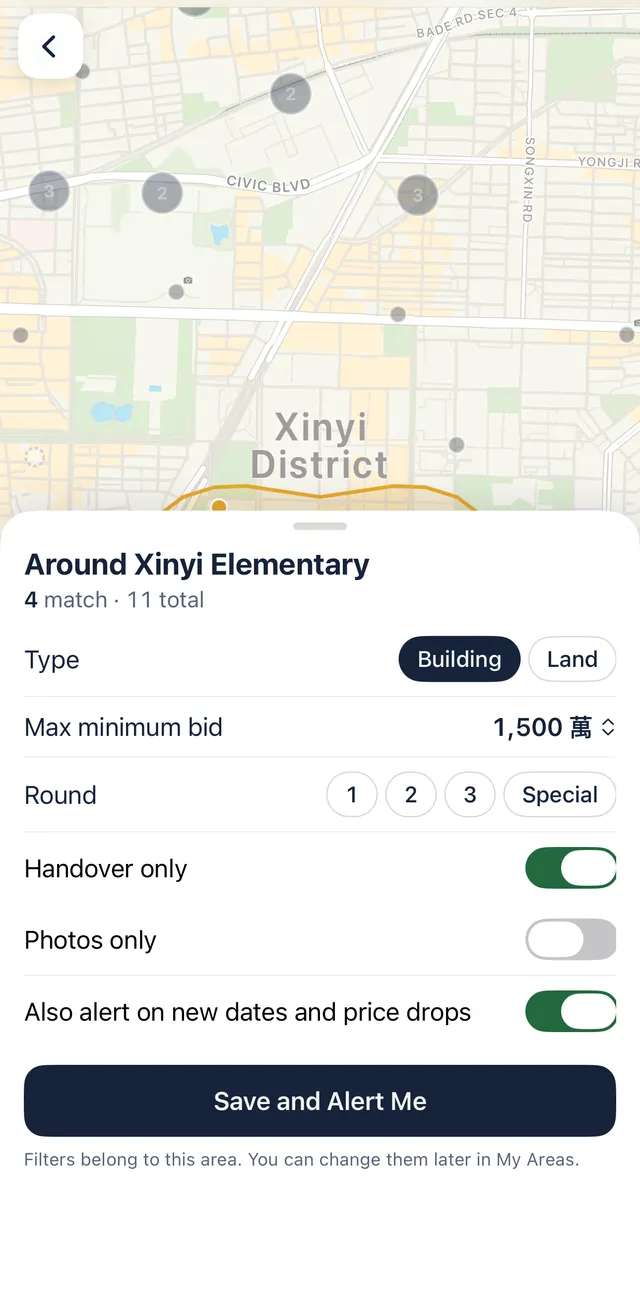
After drawing an area, set its filters. Only new auctions that match are notified.
- Type: building, land, or both.
- Max minimum bid: auctions with a higher minimum bid are not notified.
- Round: 1, 2, 3 and Special (special sale). You can pick several.
- Handover only: only auctions where the court hands over the property.
- Photos only: only auctions where the court has posted photos.
- Also alert on new dates and price drops: also notify when an auction in the area gets a new date, a lower price or is cancelled.
Tap Save and Alert Me, then give the area a name. To change filters later, open the area under My Areas and choose Edit Filters from the menu at the top right.
List
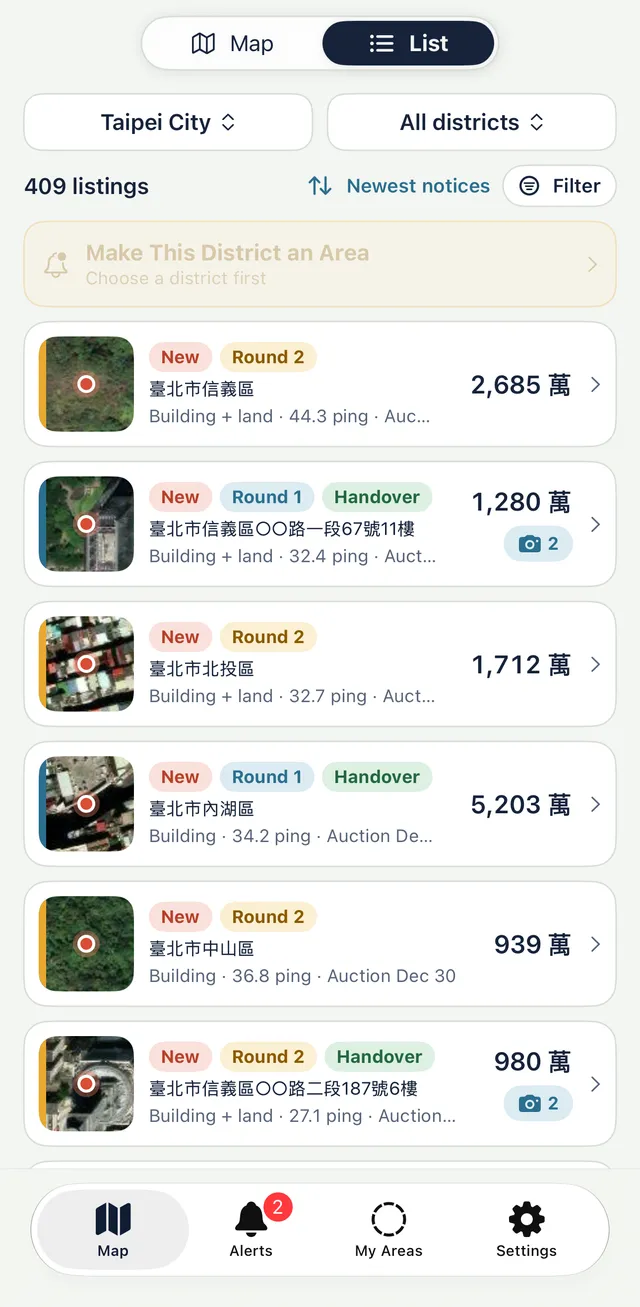
Switch to List at the top of the Map tab and pick a city and district to see its auctions.
- Sort: newest notices, auction date (soonest first), or minimum bid (low to high).
- Filter: type, max minimum bid, round, handover only, photos only.
- Each row starts with a small aerial view of the location, with tags for new, round and handover.
- A camera with a number on the right means the court posted photos. Tap it to open the official photo page.
- Tap Make This District an Area to turn the district into an area and get alerts for it.
Auction details
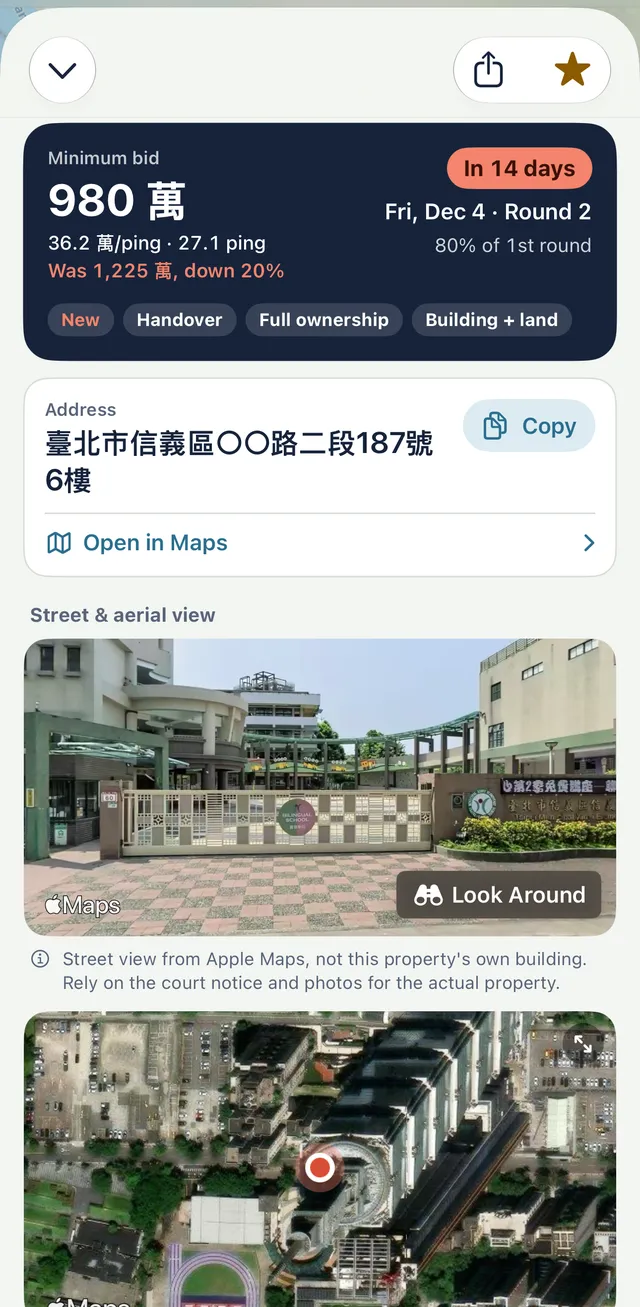
Tap an auction on the map, in the list or in Alerts to open its details. From top to bottom:
- The minimum bid and the price per ping, with the earlier price when it has dropped. On the right: days left, the auction date and the round. Tags below show handover, share and type.
- Address: tap Copy, or Open in Maps.
- Street & aerial view: Apple Maps' own street view and aerial view, to show what the area looks like. It is not the property's own building; rely on the court notice and photos for the actual property. Auctions with an approximate location only get an aerial view of the rough area.
- View Photos opens the court's official photo page, Notice opens the court notice, and Share makes a share image.
- For bidding: the combined total for lots auctioned together under one case number, an estimated deposit (20% of the minimum bid; the notice prevails), Add to Calendar for the auction date, the court and its division, and the case number with a copy button.
- The star at the top right is Watch. Watched auctions alert you on new dates, price drops and cancellations.
Sharing
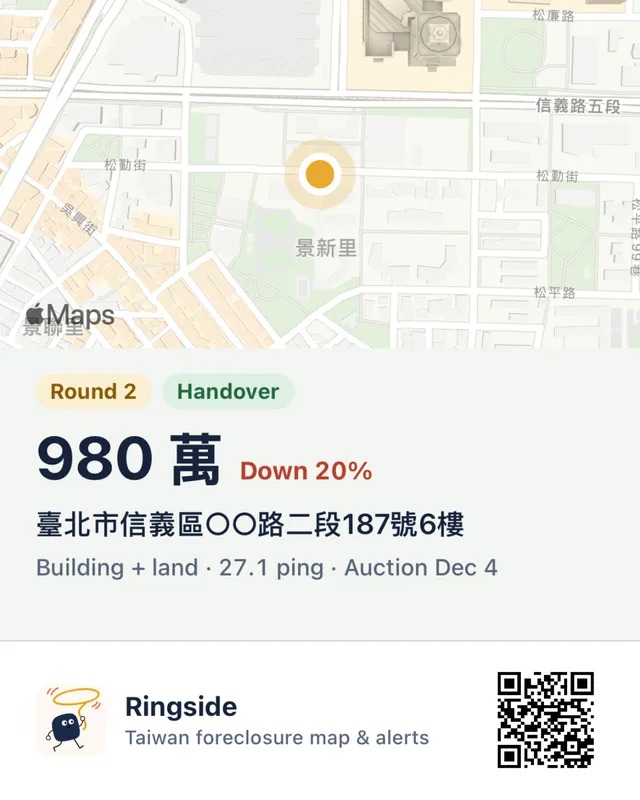
Tap Share in the auction details and Ringside makes an image: a map of the location, the round, the minimum bid, the address and the auction date, with Ringside's QR code in the corner. Send it straight to family or friends.
The share image does not include the court's official photos.
Alerts
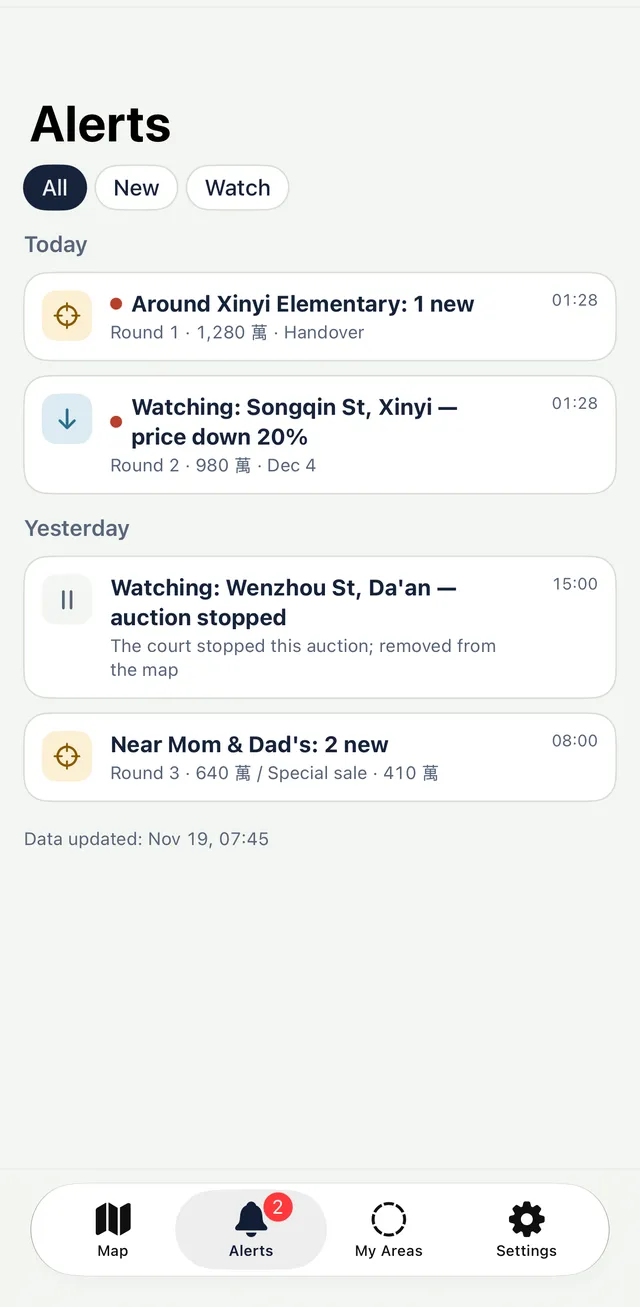
When a new auction appears in one of your areas, or a watched auction changes, your iPhone gets a notification and it stays in the Alerts tab. Switch between All, New and Watch at the top.
- New: a new foreclosure notice inside one of your areas.
- Price drop: the minimum bid went down (usually the next round).
- New date: the auction date changed.
- Stopped: the court halted or withdrew the auction, and it is removed from the map.
The bottom of the Alerts tab shows when the data was last updated.
Pricing and the free trial
For 21 days from the first time you open the app, every feature works. No payment details are needed and nothing is charged when it ends. The days left are shown under Plan in Settings.
After that, Ringside Pro keeps your data and notifications running: NT$120 per month or NT$990 per year. It renews automatically and can be cancelled any time in your App Store account settings.
If the trial ends without a subscription, your areas, filters and watched auctions stay, but updates and notifications pause. They resume when you subscribe.
Reporting a problem
Wrong data, a pin in the wrong place, missing notifications or a payment problem: tell us from inside the app.
- Settings, then Report a data or app problem: pick a category (Wrong data, Map location, Alerts, Payment, Other), describe what happened, and add a listing code if you like. Leave your email in the message if you want a reply.
- At the bottom of the auction details, tap Something off with this listing? Tell us. You can include that auction's code.
A report does not send your location, your areas or any contact details.
Not getting notifications
- In the iPhone Settings app, go to Notifications, then Ringside, and allow notifications.
- In Ringside, check that Alerts under Settings says On.
- With a small area or strict filters there may simply be no new auctions yet. My Areas shows each area's current count.
- After the trial ends without a subscription, updates and notifications pause.
Common questions
Why are some locations approximate?
Many notices have no full address, so Ringside can only place them roughly. They are drawn as a pale dashed circle, labelled Approximate, and the details say which kind: notices with only a land number sit at the land-section center; notices with no street name sit at the village center; when the exact number can't be found, near the lane; notices that name only a district sit at the district center and are not matched against freehand or radius areas. The notice is what counts.
How often is the data updated?
During the day, about every 2 hours, from the Judicial Yuan foreclosure search and the Administrative Enforcement Agency auction notices. When a court withdraws a notice, it takes one or two updates before Ringside marks it as cancelled. The time of the last update is at the bottom of the Alerts tab.
What if Ringside differs from the official notice?
The court or Administrative Enforcement Agency notice prevails. Tap Notice in the auction details to read the original. If Ringside copied something wrong, tap Something off with this listing? Tell us at the bottom of the details.
Is the street view the property itself?
No. Street & aerial view is Apple Maps' own imagery of the area, not the property's own building. To see the property, use View Photos for the court's official photos, and the notice.
How does the free trial work?
For 21 days from the first time you open the app, every feature works. No payment details are needed and nothing is charged when it ends. The days left are shown under Plan in Settings.
How much is the subscription?
Ringside Pro is NT$120 per month or NT$990 per year. It renews automatically and is charged within 24 hours before the period ends, through your Apple Account.
What happens if I don't subscribe after the trial?
Your areas, filters and watched auctions stay, but the data stops updating and no notifications are sent. Everything resumes when you subscribe.
How do I cancel?
Tap Manage Subscription in Ringside's Settings, or open the iPhone Settings app, tap your name, then Subscriptions, and cancel Ringside. You can keep using it until the end of the current period.
Does my subscription carry over to a new phone?
It belongs to your Apple Account. Open the subscription screen on the new phone and tap Restore Purchases. You will need to draw your areas again.
Can Ringside place bids or tell me whether to buy?
No. Ringside collects the notices and sends notifications. It does not place bids and does not judge individual auctions.
How do I report a problem?
In Ringside, go to Settings and tap Report a data or app problem. Pick a category, describe what happened and leave an email address if you want a reply. You can also write to sona.orbit.hi@gmail.com.
How do I delete my data?
Write to sona.orbit.hi@gmail.com and we will help you delete the data on our server. The details are in the privacy policy.