 Stashlight
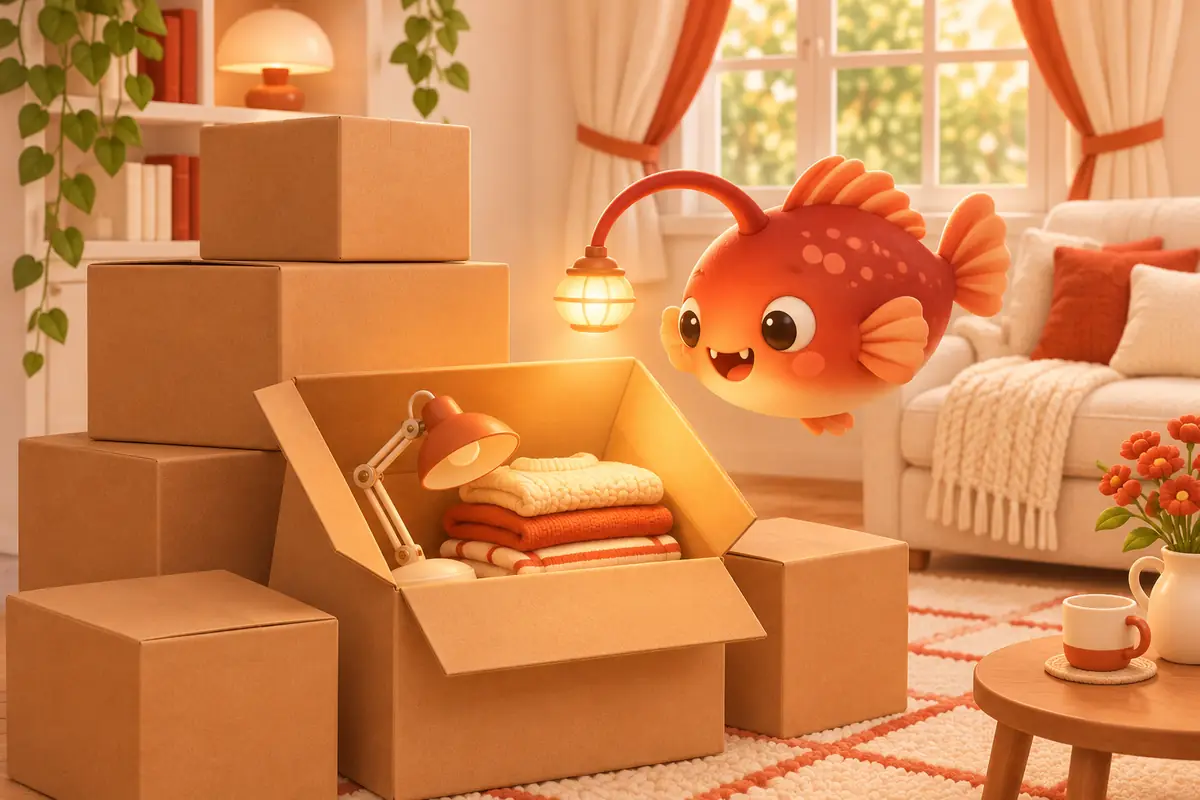
I’m Sona Orbit, the solo developer of Stashlight (深藏). Stashlight 1.0 is currently under App Store review. I checked the features and button names in this article against the app’s source code and the Stashlight website on November 19, 2026.
1. The short answer: Compare three approaches
There are three common ways to remember what you put in a box or storage space:
| Approach | What you do while packing | How you find things later | Who it suits |
|---|---|---|---|
| QR code label app | Print or attach a QR code label to each box | Scan the box with your phone to see what is inside | People with lots of boxes stacked in storage who like scanning them with a phone. You need labels, and you cannot scan a box tucked under a bed or buried in a stack |
| Notes or spreadsheet | Type your own list: “Box 3: hair dryer, winter clothes” | Search for a keyword | People with fewer things who like typing. Typing slows down packing, and a search fails if you wrote “winter coat” but later search for “puffer jacket” |
| Photos saved in nested places (Stashlight) | Photograph each thing; the app removes the background and saves the photo | Ask Lumi “Where’s the extension cord?” by typing or speaking | People who want to keep track of closets and storage spaces after the move. You do not need a label printer, but the app does not create QR codes |
No approach is best for everyone. If you have lots of boxes and only need a system for the few weeks around a move, QR code labels may feel more direct. If you have a dozen or so boxes and like typing, Notes may be enough. Stashlight is for people who want to track moving boxes, seasonal clothes, and storage spaces together, then keep using it after the move.
2. Keep using it after the move: Places within places
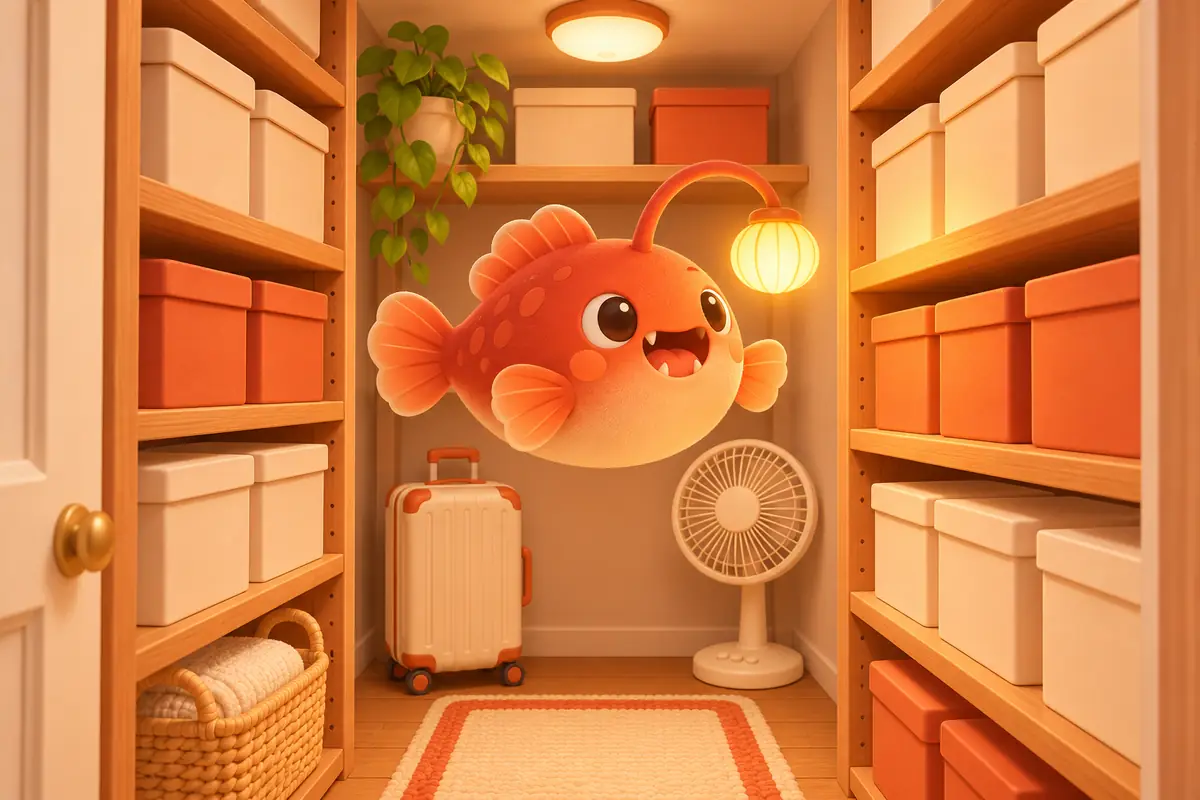
Many moving lists stop being useful once you unpack. Seasonal storage comes around every year, so I included both “Moving Box” and “800 Closet” as templates for new places. There are eight templates: fridge, 800 Closet, cabinet, bookshelf, wardrobe, collection shelf, medicine box and moving boxes. An 800 Closet is a walk-in storage closet about 80 cm deep, often near an entryway or hallway. It is a common place for suitcases and seasonal things.
- Places can contain other places: Create an “800 Closet,” then add “Winter Clothes Box,” “Fan,” and “Camping Gear” inside it. The outer card shows which places it contains.
- No need to retake photos after unpacking: Use “Move Into…” in the menu, or press and hold a card and drag it onto another card, to move a whole box into a new place such as “Study Bookshelf.” In grid view, you can also select several things and move them together.
- Three views: Display view arranges background-removed photos on graph paper or a corkboard. You can drag and resize them to see what is in a box at a glance. Grid view helps you find things. List view helps you take stock: adjust quantities directly, or swipe left for “Used Up.”
If you delete something by mistake, tap the gear at the top right of Home and go to “Recently Deleted.” You can restore it within 30 days.
3. How to track your boxes in four steps
If you are packing away summer clothes this week or getting ready to move, start here:
- Create one main place, then put boxes inside it. For example, create “Moving” or “800 Closet,” then add “A1,” “A2,” and “Winter Clothes Box” inside it. The free version lets you create 3 top-level places. Places inside them do not count, so you can put all your boxes in one main place on the free version.
- Take photos before sealing the box. Press and hold the camera button at the bottom and choose “Continuous Scan (Add Multiple Items).” Photograph things one by one, then review them together at the end. The app removes photo backgrounds on your phone. If background removal fails, it saves the original photo instead. When you save, the app also assigns a subcategory under the main category, such as Clothing › Pants.
- Write only a number on the outside. Write “A1” on the box with a marker, matching its name in Stashlight. You do not need to print a QR code.
- Ask Lumi when you need something. Lumi is Stashlight’s mascot, an anglerfish with a light on its head. Type in the field at the top of the home screen, or tap the microphone and ask, “Where’s the extension cord?” or “Which box has the camping lantern?” Lumi will tell you which place holds it.
You can still find things without turning on AI. Stashlight searches names, categories, and places. When your phone supports it, speech recognition runs on the phone. If you want it to understand related terms, such as photographing a “puffer jacket” and asking months later where your “winter coat” is, or want help naming things, turn on AI in “Settings › AI.” Choose Apple’s built-in Apple Intelligence (free, no internet required, and requires a supported iPhone with iOS 26 or later), or enter your own API key for Gemini, Claude, DeepSeek, or another provider.
4. Current limitations
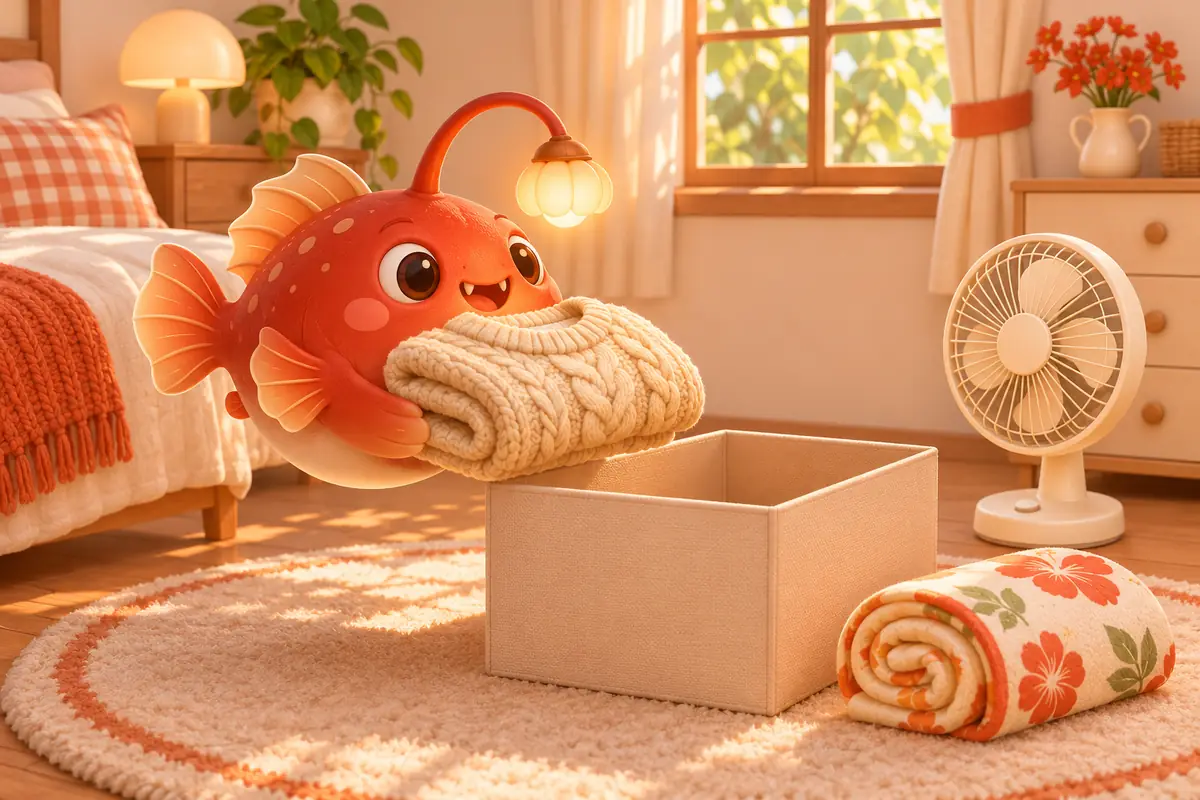
Before you add your whole storage space, keep these points in mind:
- It does not create QR code labels. Stashlight’s camera recognizes product barcodes. It checks food against Open Food Facts and books against Open Library and Google Books. It does not create custom QR codes you can print and put on boxes. If you like scanning a box to see its contents, a QR code label app will be a better fit.
- There is no iCloud sync or family sharing. Your data stays in the app on your iPhone. It is included when you back up your iPhone, and you can export a CSV from Settings. If two people pack separately, they cannot see each other’s changes in real time.
- The free version has ads and limits. You can create 3 top-level places and open only your 2 most recent Lumi conversations. A Google banner ad appears at the bottom of Home, Spaces, and Search. The ads are always non-personalized; see the privacy policy for details. Stashlight Pro has unlimited places and conversation history, with no ads: US$1 per week, US$3 per month, or a one-time purchase of US$5. These are US prices; check the App Store for pricing elsewhere.
- It is not suited to piles of small parts. Photographing screws in dozens of sizes or individual loose parts is not practical. Photograph the whole container and put the sizes you use often in its notes instead.
To try it, create an “800 Closet” or “Moving” place and photograph what is going into your next box. A few days later, ask Lumi where one of those things is and see whether the approach works for you. Stashlight requires an iPhone with iOS 18 or later.
5. Frequently asked questions
Can Stashlight print QR codes for moving boxes?
No. Stashlight recognizes product barcodes but does not create custom QR codes. Write a number on the box that matches its name in the app. Later, ask Lumi which box holds what you need.
Are the free version’s 3 places enough for moving boxes?
Yes. Only top-level places count toward the free version’s limit. Create a “Moving” place and put each box inside it.
Do I need to retake photos after I move?
No. Use “Move Into…” in the menu, or press and hold and drag, to move a whole box into a new closet or bookshelf. In grid view, you can also select several things and move them together.
Can my family and I track the same boxes together?
Not yet. Stashlight does not have iCloud sync or family sharing. The data stays on one iPhone.
Do I need to create an account?
No. Your things and photos are stored in the app on your iPhone. I do not have a server and cannot see your data.