 Parroting
 Scan with your iPhone cameraParroting for iPhone · US$4.99 once

I'm Sona Orbit, the solo developer behind Parroting. Parroting has an iPhone voice keyboard, so section 7 mentions it. The built-in dictation steps and limits follow Apple's documentation (Dictate text on iPhone, iOS and iPadOS Feature Availability). I checked them on November 22, 2026, when the newest version in the guide was iOS 27. Setting names may differ slightly between iOS versions, so go by what your screen shows. Parroting features follow the iPhone page.
1. Quick answer: three steps to start talking
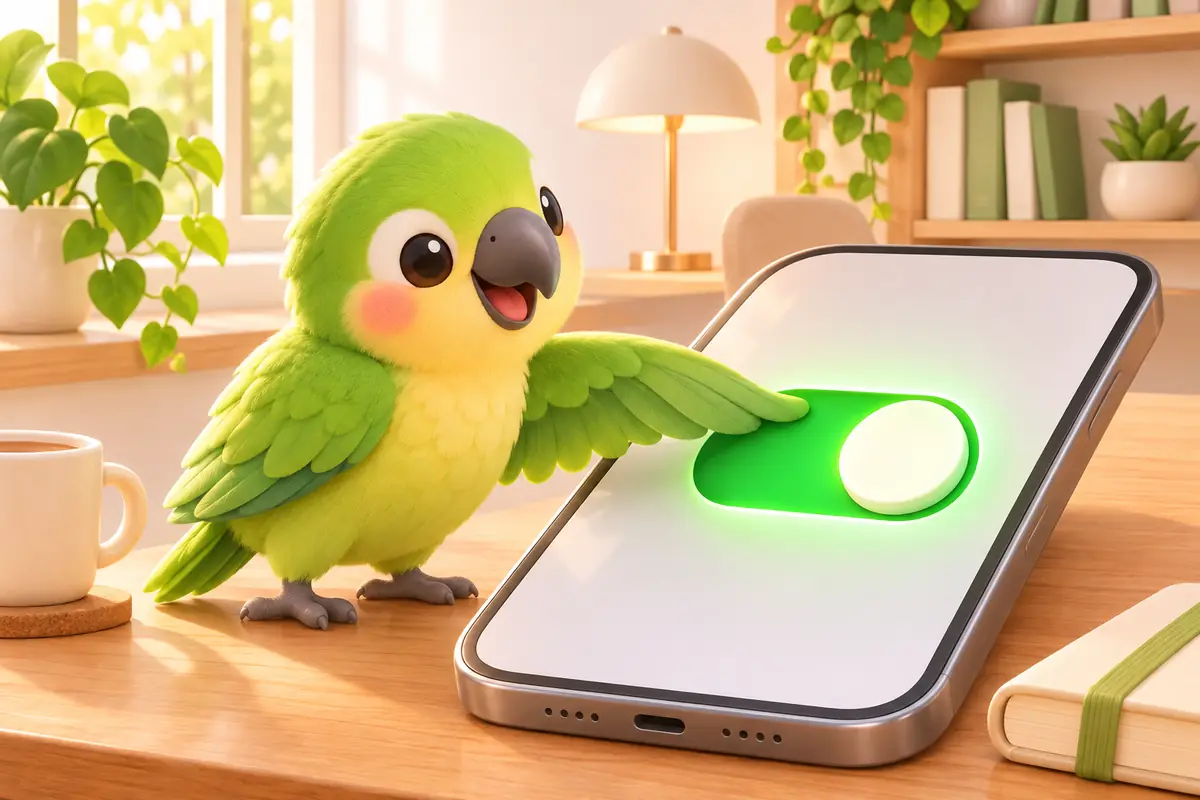
- Turn on Dictation. Settings → General → Keyboard → turn on "Enable Dictation".
- Tap the mic. Bring up the keyboard in any text field and tap the microphone. When a mic appears next to the cursor, start talking.
- Stop. Tap the mic again, say "stop dictation", or stay quiet for 30 seconds.
If you only reply to a message now and then, that's all you need. The sections below cover each step and the limits Chinese speakers run into.
2. Turn on iPhone dictation
Apple's steps:
- Open the Settings app.
- Tap "General", then "Keyboard".
- Turn on "Enable Dictation". If prompted, tap "Enable Dictation".
To see how Apple handles your voice, tap "About Dictation & Privacy" under the Dictation settings on the same page. To turn it off later, switch "Enable Dictation" off in the same place.
If the keyboard has no microphone, this switch is usually still off.
3. Start and stop
Tap where you want the text to start, then tap the microphone on the onscreen keyboard. Some text fields show a microphone inside them, and tapping that works too. When the mic appears next to the insertion point, start talking.
The keyboard stays open while you dictate. If you want to fix a word by hand, type it, then keep talking.
Three ways to stop:
- Tap the microphone again.
- Say "stop dictation".
- Say nothing. Dictation stops on its own after 30 seconds of silence.
Dictation follows the current keyboard. Apple's guide says that when you switch to a keyboard for another language, you can dictate in that language. To speak Chinese, make sure a Chinese keyboard is active. If you switch between Chinese and English, you have to switch keyboards back and forth.
4. Speaking Chinese: punctuation, line breaks, emoji
Punctuation
Apple's feature list includes Mandarin (Taiwan) for automatic punctuation. Talk normally and commas, periods and question marks are added for you. To stop that, go to Settings → General → Keyboard and turn off "Auto-Punctuation".
Other marks you say out loud, such as "exclamation mark" (in Chinese, 驚嘆號).
Line breaks and paragraphs
| Say (Chinese) | Result |
|---|---|
| 換行 (new line) | Moves to the next line |
| 新增段落 (new paragraph) | Starts a new paragraph |
| 停止聽寫 (stop dictation) | Ends dictation |
Emoji
Say the emoji's name, such as "heart emoji" or "smiley emoji". The feature list includes Mandarin (Taiwan) for dictating emoji too.
Editing by voice is English only for now
Apple's guide lists a few editing commands, such as saying some text and then "select" or "delete", or changing a word by voice. But in the feature list, "Edit by voice" only showed English (US) when I checked. When you dictate in Chinese, tapping the wrong word and fixing it by hand is still faster.
5. Does it need internet? Mandarin (Taiwan)
Apple's guide says dictation is processed on iPhone in many languages without an internet connection. Many isn't all. The feature list has a separate list for "On-device dictation and continuous dictation". When I checked, it included Mandarin (China mainland) and Cantonese (Hong Kong), but not Mandarin (Taiwan).
So if you dictate in Taiwanese Mandarin, assume it needs a connection. Apple also notes that dictation may use cellular data. And when you dictate into a search field, the text may be sent to the search provider to process the search.
If you care whether your voice leaves the phone, read "About Dictation & Privacy" and try it yourself in Airplane Mode.
6. Check these first when it misbehaves
| Problem | Check first |
|---|---|
| No microphone on the keyboard | Is "Enable Dictation" on in Settings → General → Keyboard? |
| Text comes out in another language | Is a Chinese keyboard active? Dictation follows the keyboard's language |
| Too much punctuation | Turn off "Auto-Punctuation" on the same page and say marks when you need them |
| Suddenly stops working | Is the network down? Mandarin (Taiwan) isn't on the on-device list |
| Stops in the middle | It stops after 30 seconds of silence. Tap the mic again to continue |
| Saying "delete" does nothing | Editing by voice only supports English (US). Fix Chinese text by hand |
7. Want a dictionary and cleanup? Third-party voice keyboards
Built-in dictation needs no install and works well for short replies. Consider a separate voice keyboard if:
- Colleagues' names or product names keep coming out wrong, and you want to save the right spelling once so it's fixed from then on.
- You say "um" a lot or correct yourself mid-sentence, and want that cleaned up before it's pasted.
- You want spoken notes turned straight into a list or an email.
- You also use voice typing on a Mac and want one dictionary on both.
Here I'll use my own app, Parroting for iPhone, as the example. It's a system keyboard. Switch to it in LINE, Messages or Mail and talk:
- Install. Download it from the App Store, open Parroting once and allow the microphone.
- Add the keyboard. Add Parroting as a keyboard in Settings.
- Allow Full Access. This is the name iOS uses for the permission a keyboard needs to talk to its main app. It lets the keyboard ask Parroting to record and then put the text back. The first launch walks you through it in about a minute.
While you talk, the keyboard shows two buttons. "Done" pastes what you said. The colored one first rewrites it in the format you picked, then pastes. Recognition uses the iPhone's built-in speech recognition, follows the iPhone's language (you can change it in settings), and recordings aren't saved or uploaded. The difference is mostly what happens after recognition: a dictionary, cleanup and rewriting.
| iPhone built-in dictation | Parroting for iPhone | |
|---|---|---|
| Install | None, built in | Download from the App Store, add the keyboard |
| Price | Free | NT$150 one-time, no subscription |
| Requirements | Depends on iOS version and language | iOS 26 or later |
| Misheard names | Fix by hand | Add to the dictionary once, fixed automatically after that |
| Filler words, self-corrections | Typed as spoken | Once AI is set up, removed before pasting |
| Rewrite and translate | None | Rewrite sliders, translation into four languages; needs AI (Apple built-in or your own API key) |
| Sharing with Mac | None | With iCloud Drive on, shares the dictionary, rewrite formats and history with the free Mac app |
It works without AI too. "Done" pastes exactly what you said. Removing filler words, rewrite formats, the rewrite sliders and translation need AI: either Apple Intelligence on the iPhone (only on supported models) or your own API key. More on the iPhone page and in the Parroting for iPhone launch post. To set up voice typing on a Mac, see How to turn on Mac dictation. If names and jargon keep coming out wrong, see three ways to fix misheard words.
8. FAQ
Where is the iPhone dictation switch?
Settings → General → Keyboard, then turn on "Enable Dictation". A microphone then appears on the keyboard.
How do I add punctuation when dictating Chinese on iPhone?
Mandarin (Taiwan) supports automatic punctuation, so commas, periods and question marks are added for you. Say other marks out loud, such as 驚嘆號 (exclamation mark). Say 換行 for a new line and 新增段落 for a new paragraph.
Can iPhone dictation work offline in Taiwanese Mandarin?
When I checked Apple's feature list in November 2026, on-device dictation included Mandarin (China mainland) and Cantonese (Hong Kong) but not Mandarin (Taiwan), so assume it needs internet. The surest check is to try it in Airplane Mode.
Why don't voice commands like "delete" or "select" work in Chinese?
In Apple's feature list, "Edit by voice" only lists English (US). When dictating in Chinese, fix wrong words by hand.
Why does dictation stop in the middle?
Apple's guide says dictation stops after 30 seconds of silence. Tap the microphone again to continue.