 Parroting
 Scan with your iPhone cameraParroting for iPhone · US$4.99 once


I'm Sona Orbit, the independent developer who builds Parroting on my own, so this is about my own product. The ranking shown is a screenshot of the Taiwan App Store "Productivity" paid chart from 2026-11-08. Price, app size, system requirements, and Family Sharing follow the App Store listing. Feature details follow the iPhone app page.
1. Hitting #1 in paid productivity apps
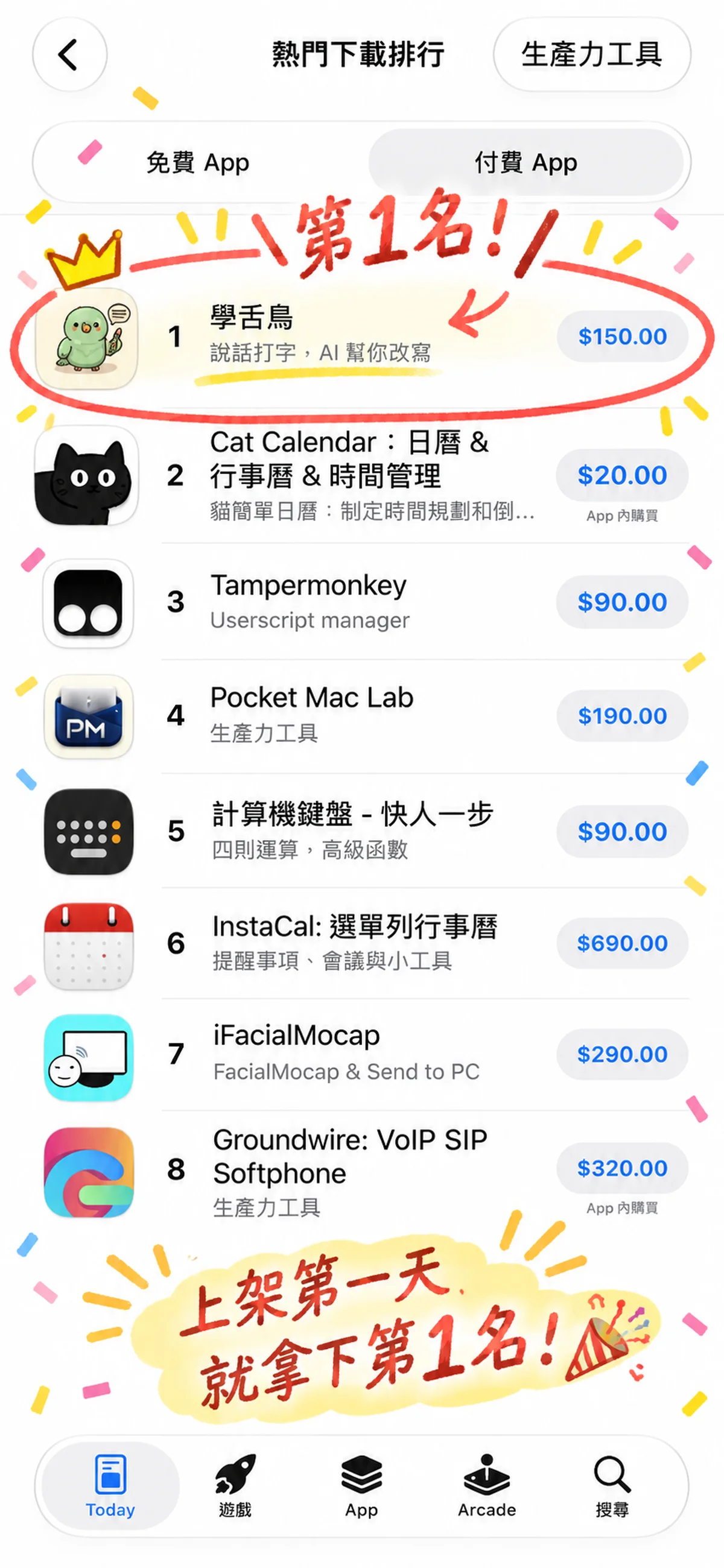
After launch, the iPhone app climbed to #1 on the Taiwan App Store's "Productivity" paid chart, ahead of longtime tools like Cat Calendar, Tampermonkey, and Pocket Mac Lab.
I built the iPhone app myself after the Mac app, and the idea was simple. A lot of people get used to holding a shortcut and talking on their Mac. But when they step out and use their phone to reply to a text, write an email, or jot down a note, they're back to tapping away on a small screen, or letting the built-in dictation misspell a name they've already corrected before. So the iPhone app is built as a keyboard you talk to, and through your own iCloud, it shares the same dictionary and rewrite formats with the Mac app.
2. How the iPhone app and Mac app split the work
| Feature | iPhone app | Mac app |
|---|---|---|
| Price | NT$150 one-time purchase, no subscription; supports Family Sharing (up to 6 people) | Free |
| How you talk | System keyboard: switch to the Parroting keyboard in any text field, tap the mic, and talk | Global shortcut: hold Right ⌥ + Right ⌘ to talk, release to paste at your cursor |
| Speech recognition | Uses iPhone's built-in recognition on the device; recordings aren't saved or uploaded | On-device models you can download and switch between, including SenseVoice Small, Qwen3-ASR, and Breeze-ASR-25 |
| Tone hints | Keyboard shows an orange dot when something sounds harsh, with a softer alternative | Same hints; after 20 pieces of feedback, you can train your own sense of tone on the Mac |
| AI rewrite & translation | Apple built-in, or your own API key (Gemini, OpenAI, OpenRouter, Groq, custom) | Apple built-in, or your own API key (like a free Gemini key) |
| Shared between devices | With iCloud Drive turned on, your dictionary, rewrite formats, My Info, and history sync across both | |
| Requirements | iOS 26 or later | Apple silicon Mac, macOS 11 or later |
3. Using the iPhone app: a keyboard you talk to
The most annoying part of dictating on a phone is bouncing between a recording app and whatever you're typing into. The iPhone app is built directly as a keyboard: switch to it in Messages, Mail, Notes, or any chat app, and tap the mic to talk. The first launch walks you through setup in about a minute: allow microphone access, add the Parroting keyboard, and allow Full Access.
- Spoken words become finished text: while you talk, the keyboard shows two buttons. Done pastes exactly what you said. The colored button runs it through your chosen rewrite format first (tone cleanup, email format, bullet points, and so on), then pastes it. Filler words like "um" and "so, like" and mid-sentence do-overs get cleaned up before they're pasted.
- Rewrite sliders: select text you've already typed, use four sliders to adjust length, formality, tone, and bullet structure, tap Rewrite, and the result replaces your selection right there.
- Translation: select text and translate it into one of four languages you've set (default: Chinese, English, Japanese, Korean) without switching to a translation app.
- Tone hints: when you're rushing to reply to a message, it's easy to sound harsher than you mean to. If what you said comes across as too blunt, an orange dot lights up on the keyboard with a gentler way to say it.
- Every sentence is kept: the History tab in the app is searchable, and you can see the original text before cleanup. If a call interrupts you mid-sentence, you can come back and find it later.
- Status at a glance: the little bird icon in the top-left corner of the keyboard shows six states: idle, listening, thinking, pasted, error, and asleep. If the AI hits a problem, it explains why, like a bad API key, an exhausted quota, or a retired model, along with how to fix it.

4. Pairing with Mac: shared dictionary and formats via iCloud
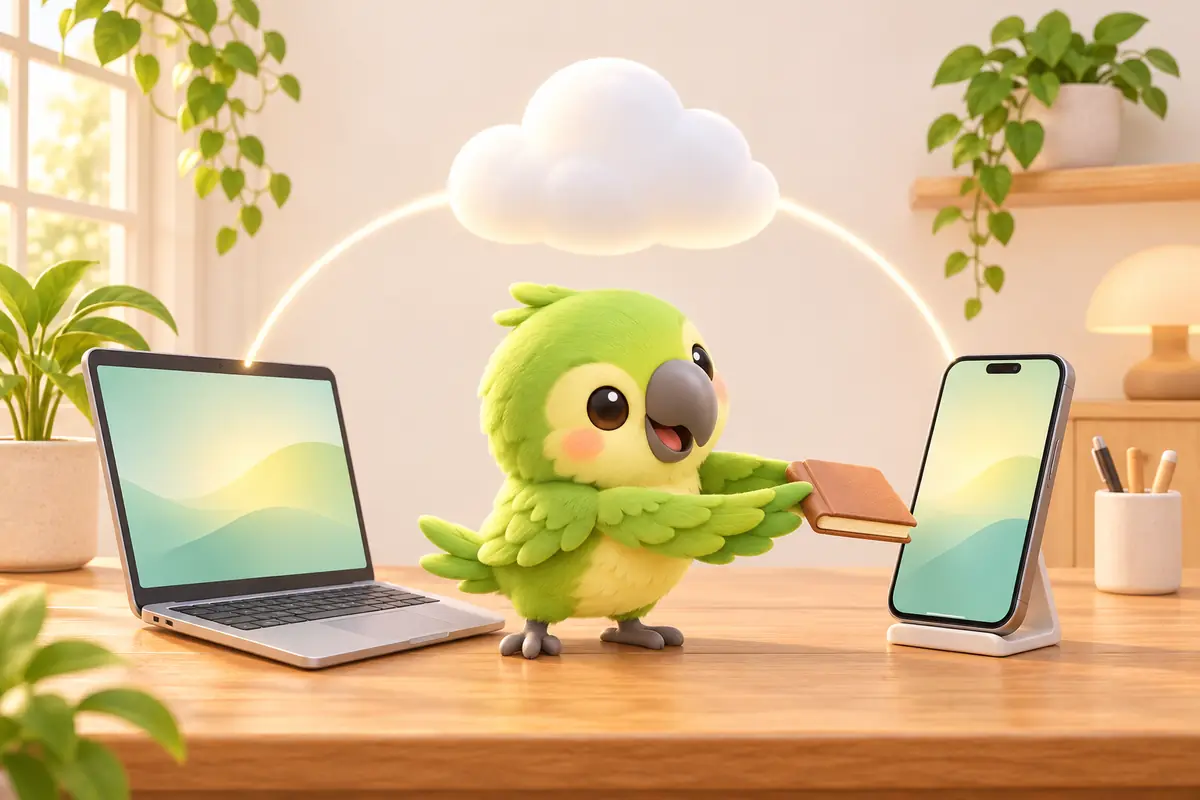
If you have both a Mac and an iPhone, turn on iCloud Drive on both and Parroting shares data through your own iCloud, no separate account needed:
- Edit the dictionary once, both devices understand: add a client's name, a coworker's nickname, or an English project name you keep mishearing to your personal dictionary on the Mac, and your iPhone keyboard recognizes it too when you text on the go. Words you add on the phone work back on the Mac as well.
- Custom rewrite formats are shared: a format you build on the Mac shows up right in the iPhone keyboard's picker.
- My Info is shared: fill in your name, title, and company once, and both devices include your sign-off when you rewrite with the email format.
- History is shared: anything you dictated on one device, you can find on the other.
5. What to know before you buy
- You can't download speech models yourself: the Mac app lets you download on-device models from a few hundred MB up to 1.5 GB. Third-party keyboards on iPhone have tight memory limits, and loading a large model risks getting the keyboard shut down by the system, plus it drains the battery faster. So the iPhone app uses iPhone's built-in recognition instead, which keeps the app around 26 MB. Recognition follows your iPhone's language setting, and you can change it in Settings.
- Requires iOS 26 or later: iPhones running an earlier version of iOS can't install it.
- "Apple built-in" AI has device limits: this uses Apple Intelligence on your iPhone, which needs an iPhone 15 Pro, 15 Pro Max, or iPhone 16 or later, running iOS 26.1 or later (Traditional Chinese support starts at 26.1), with Apple Intelligence turned on in Settings. If your device doesn't qualify, dictation still works fine. For AI rewrite and translation, you can use your own API key instead.
- You'll need to grant "Full Access": this is the iOS permission name for keyboards that need to talk to their main app, so the keyboard can ask Parroting to record audio and paste text back. Parroting has no account, no ads, and no tracking. Only if you choose "My API key" does the text you're rewriting get sent directly to the AI service you picked, without passing through me.
6. FAQ
I bought the iPhone app. Do I still need to pay monthly for AI rewriting?
Not to me. If your phone supports Apple Intelligence, you can just pick "Apple built-in", which is free and keeps text on your device. If it doesn't, you can get a free Gemini API key and enter it; Gemini offers a free tier, and any charges come from that service directly, not from me.
How do the iPhone and Mac apps sync the dictionary and history?
Sign in with the same Apple ID on both devices and turn on iCloud Drive. Parroting then shares your dictionary, rewrite formats, My Info, and history through your own iCloud, no separate account needed.
Can I use it without AI?
Yes. Tapping Done pastes exactly what you said, word for word. Recognition and basic cleanup happen on your device. AI only kicks in when you choose a rewrite format, use the rewrite sliders, or translate.
Can my family use it too?
Yes. The iPhone app supports Apple's Family Sharing. Buy it once, and up to 6 family members can use it.
Will the Mac app start charging later?
The Mac app is free for now. You can try voice typing, your personal dictionary, and tone hints on the Mac first, then decide if you want the iPhone app too.
Download: iPhone app (App Store, NT$150 one-time) or Mac app (free). Related reading: Typeless alternatives compared, Choosing Chinese voice typing on Mac.