 Konjac Translate

I'm Sona Orbit, the solo developer of Konjac Translate (翻譯蒟蒻). When I discuss Konjac Translate here, I'm talking about my own app. Its button and screen names reflect the current app. The steps for Apple's Translate app come from Apple Support, and those for Google Translate come from Google Translate Help. I checked both on November 20, 2026. If you want help choosing an app first, read how to translate face to face without internet while traveling. If you're going to Japan, how to use a translation app offline in Japan has useful phrases for your trip.
1. First, lay the phone flat between you
One common snag with face-to-face translation is passing the phone back and forth. You turn the screen toward the other person after you speak, then turn it back when they reply. After a few turns, that gets tiring for both of you.
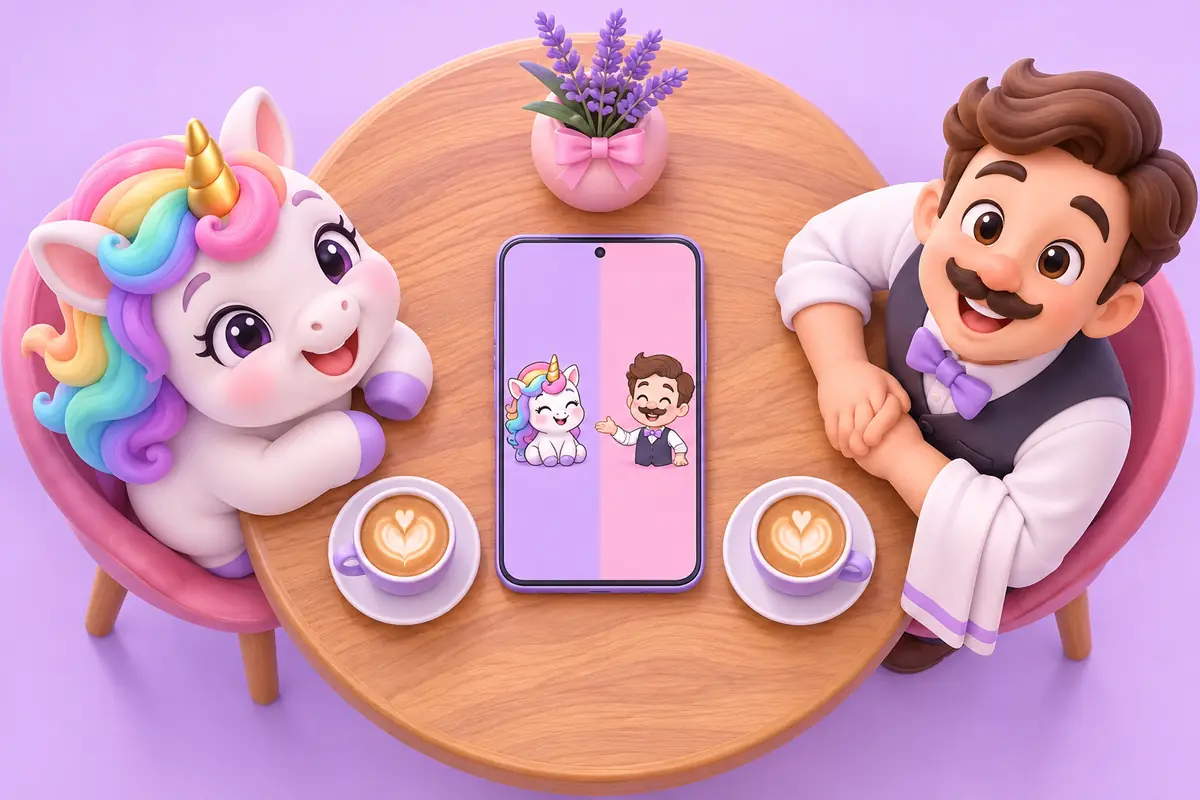
Face-to-face view solves that problem. The screen is split in two, with the other person's half turned upside down from your point of view. Each of you reads your own side. You only need to position the phone once:
- Lay it flat on a table or counter, midway between you. Don't hold it at an angle for the other person to read. Their half will be hard to see.
- Point your half toward you and the other half toward them. In Konjac Translate, your half is on the bottom and theirs is on top.
- Stay about an arm's length from the phone. Lean toward it a little when it's your turn to speak. That helps it recognize your words.
If you're sitting side by side, such as in the back of a taxi or at a counter, the upside-down view isn't helpful. Switch to a regular upright view so you can both read the screen from the same side.
2. Use Apple's Translate app face to face
If you don't want to install another app, Apple's Translate app has a face-to-face view. According to Apple's instructions:
- Open the “Translate” app and tap “Conversation.”
- Switch the conversation view to Face to Face.
- Tap the microphone to speak, or tap the text field to type. The translation appears in the conversation bubbles on both sides. You can also tap Play to hear it aloud.
One useful option is Auto Translate. Turn it on and you won't have to tap the microphone every time. Your iPhone detects when you start and stop speaking. Play Translations reads translations aloud automatically, while Detect Language identifies which language is being spoken.
Without internet, Conversation works with languages you've already downloaded. Before you leave, download the languages you need in your iPhone's “Settings.”
3. Use Konjac Translate's “Talk” tab
In Konjac Translate, the “Talk” tab opens in face-to-face view by default. Here's how to use it the first time:
- Choose two languages: The language bar is at the bottom of the screen. Your language is on the left, and the other person's is on the right. Tap a language name to change it, or tap the arrow in the middle to swap them.
- Lay the phone flat with the top half facing the other person. Their controls are on top and yours are on the bottom.
- Tap the microphone on your side and speak. While the app is listening, the button becomes a red Stop button. Tap it when you're done.
- The translation appears on their half and plays aloud automatically. Your half shows what the app heard you say, so you can check for mistakes.
- Let the other person reply: Ask them to tap the microphone on their side. When they're done, the English translation appears on your half.
Each side also has two small buttons. The keyboard lets you type instead, and the speaker reads that side's text aloud again. “Translate again” at the top translates the last sentence again, which is useful after you change languages.
“Face to face” at the top left switches to “Same direction” for when you're both looking at the screen from the same side. The conversation then appears as a stack of cards, with smaller original text and larger translated text. You can also find this layout option under “Layout” in the “Settings” tab. That's where you can turn off “Speak translations automatically,” too.
The free version has a small banner ad at the top. In “Talk,” it appears only on your side, not on the half facing the other person.

4. Take turns so the other person can follow
How you speak makes a big difference to a translation app's accuracy. These tips apply to any app:
- First, let the other person know you're using a translation app. Konjac Translate's “Travel cards” include “I'm using a translation app. Please look at my screen.” under “Basics.” Show them that card so they know to look at the screen and wait for you to finish.
- Say one short sentence at a time. “Is there a nearby restaurant serving local food where I won't have to wait in line?” is easier to mistranslate. Split it into “Is there a restaurant nearby?” and “Is there a wait?”
- Wait for the translation before switching speakers. If you both talk at once, the microphone picks up your voices together.
- Type names, addresses, and numbers. Hotel names, street numbers, and dates are easy for speech recognition to get wrong.
- Check the original text on your side. If the app heard you wrong, the translation will be wrong too. Just say it again.
5. What to do when it's noisy or someone speaks too fast
At a station, market, or busy restaurant, speech recognition may struggle to catch your words. Try this:
- Type instead. Konjac Translate has a keyboard button on each side. Type your message and send it to translate it into the other person's language.
- Show the text in a larger view. Save phrases you use often as cards. Or translate something in the “Translate” tab, then show it as large, full-screen text.
- Ask the other person to speak slowly or write it down. Under “Basics,” you'll find “Could you speak a little more slowly?” and “Could you write it down for me?” You can then type what they wrote to translate it into English.
- Move a little closer to the phone when you speak, but leave it lying flat between you instead of lifting it toward your mouth.
If the spoken translation sounds robotic or is hard for the other person to understand, your iPhone may not have downloaded a natural-sounding voice for that language. Go to “Settings” > “Accessibility” > “Read & Speak” > “Voices” on your iPhone and download a voice marked “High Quality.”

6. Compare the three options and Konjac Translate's limits
| Apple's “Translate” app | Google Translate | Konjac Translate | |
|---|---|---|---|
| Open face-to-face view | Conversation, then switch the view to Face to Face | Tap the face-to-face icon in Live Translate | Opens by default in the “Talk” tab |
| Switch speakers | Turn on Auto Translate to detect when speaking starts and stops | Google's instructions say the microphone automatically detects when the language changes | Tap the microphone on your side each time |
| Without internet | Works with downloaded languages | Google's instructions don't say whether face-to-face mode works offline | Works offline after both languages are downloaded |
| Frequently used phrases | Save to Favorites | Tap the star to save a phrase | Save as cards you can group; includes ready-made travel cards |
If you only need to translate a few sentences now and then, Apple's “Translate” app works well. Auto Translate also saves you from tapping the microphone every time. Konjac Translate is for people who repeat the same phrases often, such as when traveling or helping international customers in a store.
Here's what Konjac Translate can't do right now:
- It doesn't detect whose turn it is automatically. Each person has to tap the microphone on their side to start speaking, then tap it again to stop.
- It can't translate photos. There's no camera feature. For menus and signs, use the camera feature in Apple's “Translate” app or Google Translate.
- It's only on iPhone. It requires iOS 18 or later. There's no Android version.
- You need internet for the initial downloads. Download the language and speech models first. Speech models download only over Wi‑Fi.
7. Frequently asked questions
Does the built-in iPhone Translate app have a face-to-face mode?
Yes. Open the Translate app, tap Conversation, then switch the view to Face to Face. Each person can read their own side of the screen.
Where should I put my phone for face-to-face translation?
Lay it flat between you, with your half facing you and the other half facing the other person. Don't hold it at an angle for them to read. If you're sitting side by side, use a regular upright view instead.
How do I switch speakers in Konjac Translate's face-to-face view?
Your half is on the bottom and the other person's is on top. Each side has a microphone. Whoever is speaking taps the microphone on their side, then taps it again when they're done. The translation appears on the other half and plays aloud automatically.
What if it's too noisy and the app keeps hearing the wrong words?
Typing is the safer choice. Konjac Translate has a keyboard button on each side. You can also save phrases you use often as cards and show them in a larger view.
Can I translate face to face without internet?
Apple's “Translate” app works with downloaded languages. Once you've downloaded both languages in Konjac Translate, translation, speech recognition, and spoken output all run on your iPhone without internet.
For other questions, visit the support page.