 Shoo! Stickers

I'm Sona Orbit, the solo developer behind Shoo! Stickers. The macOS settings and shortcuts in this article follow Apple's official support documents (checked in November 2026). Shoo's features follow the descriptions on this site.
1. Turn off notifications while sharing
The biggest risk is not an open window. It's a message notification popping up halfway through your share. In System Settings › Notifications, there is an option for allowing notifications when mirroring or sharing the display. Turn it off, and notifications are paused while you share.
You only set this once. It works every time you share your screen from then on, so do it first.
2. Share one window, not the whole screen
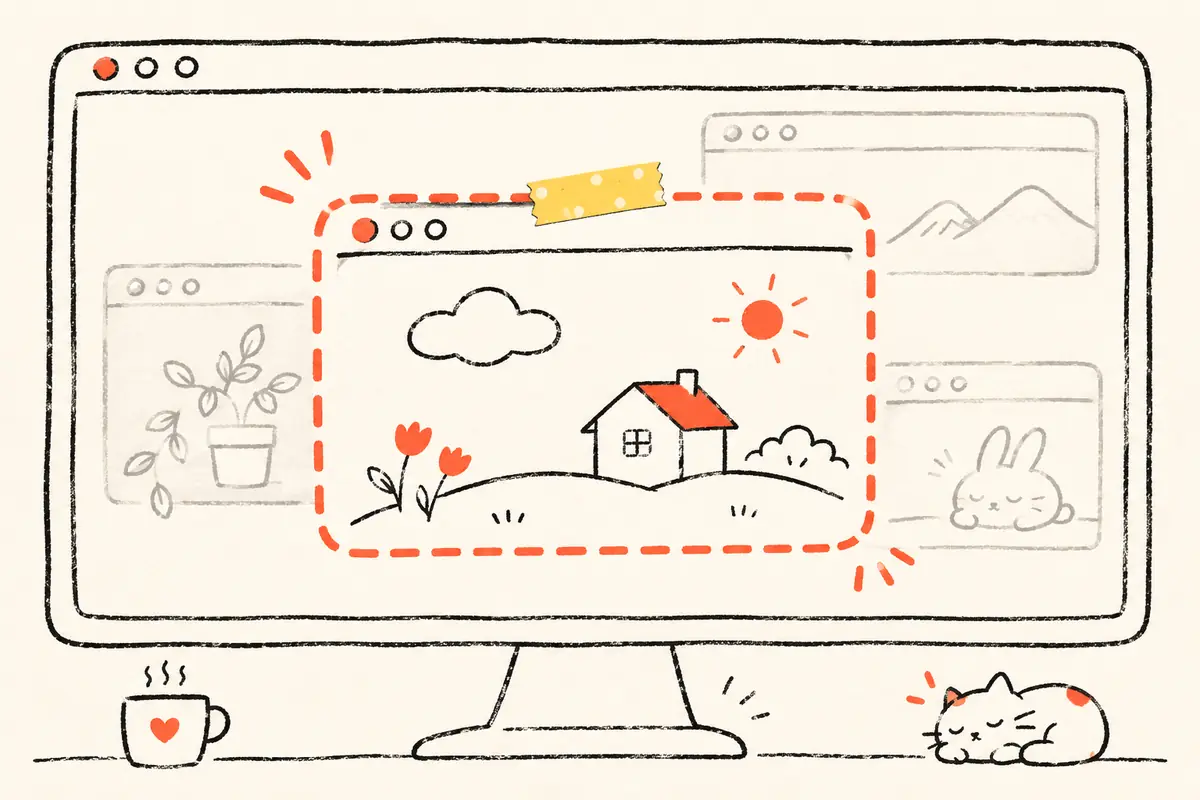
Most video meeting apps let you choose “Entire Screen” or “Single Window” when you share. If you pick a single window, nothing else can be seen.
The downside: if you need to switch to another file midway, you have to stop sharing and pick again. To save time, many people share the whole screen. Then everyone can see whatever is open behind your slides.
3. Hide other apps with a shortcut
If you do need to share the whole screen, hide the apps you don't want seen before you start. These are the shortcuts Apple lists:
| Shortcut | What it does |
|---|---|
| Command-H | Hides all windows of the frontmost app |
| Option-Command-H | Keeps only the frontmost app and hides all other apps |
| Command-M | Minimizes the frontmost window to the Dock |
| Command-Mission Control or Fn-F11 | Shows the desktop (windows move aside for a moment) |
Option-Command-H is the fastest. Switch to the presentation you're giving, press it once, and every other app hides. But after the meeting, you have to click each app back one by one. You also have to rearrange your windows yourself.
4. Tuck away your desktop files
Once the windows are hidden, what shows is often a desktop full of screenshots and files named “final_v3”. In System Settings › Desktop & Dock, you can turn off Show Items on Desktop. The files stop showing on the desktop. They are still there, just out of sight.
Remember to turn it back on after the meeting. Otherwise you may think your files are gone.
5. Doing it every time? Tie it to one sticker
All four steps work. But you have to run through them before every meeting, then undo them one by one. I forget too, so I made Shoo! Stickers:
- Tear a sticker from the sticker book, put it on your desktop, and pick which apps or windows it looks after.
- Click the sticker before a meeting and those windows all hide. Click it again and everything returns to where it was.
- Turn on “Hide desktop items too” to cover the files on your desktop with your own wallpaper.
- Safari, Chrome and Notes can hide a single window. Other apps hide as a whole.
For example, make a “Screen Share” sticker that handles chat, shopping, music and desktop files. Then make a “Someone walks by” sticker that hides only your private things.
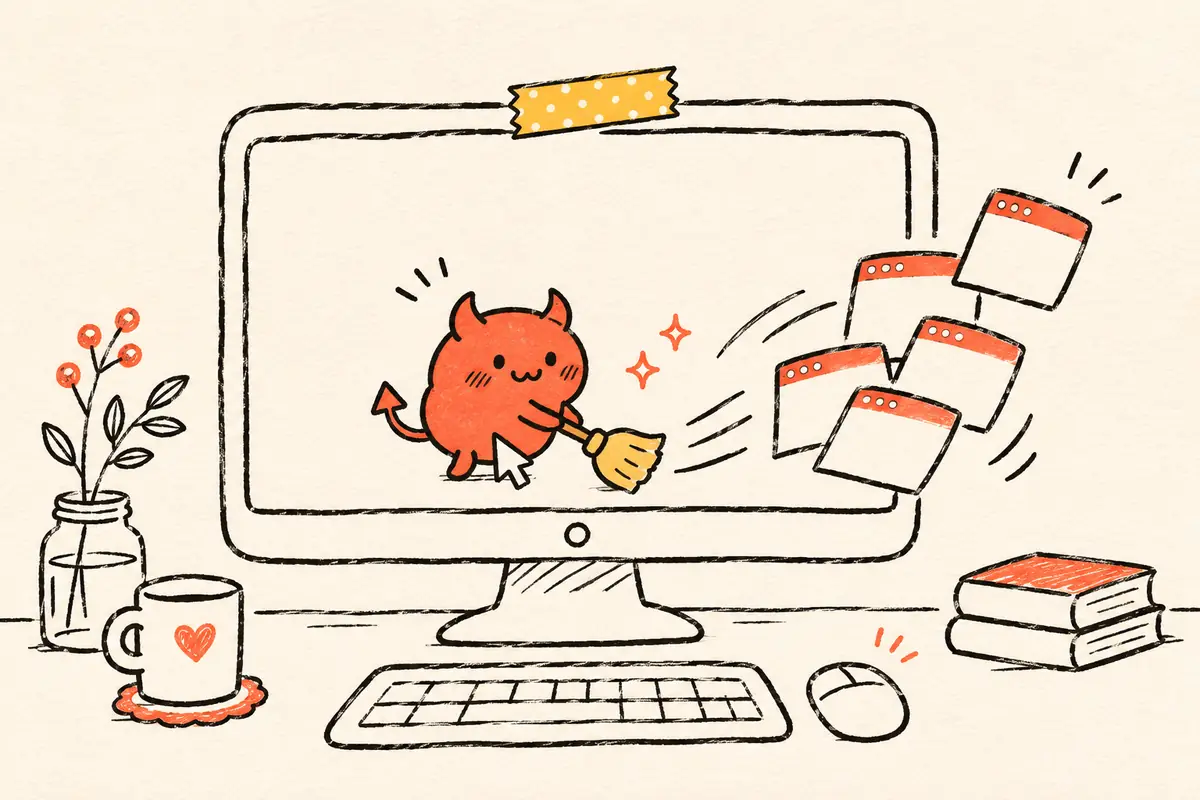
Shoo needs macOS 14 or later. The free version comes with one little red devil sticker and every feature. More stickers, photo stickers and category tabs unlock with a one-time purchase, not a subscription. Shoo only asks the system to hide or show the windows you picked. It never reads what is inside them. See the Privacy Policy for details.
6. Quick comparison of the methods
| Method | What it hides | How to restore after the meeting |
|---|---|---|
| Turn off notifications while sharing | Notifications that pop up while you share | Nothing to restore, set it once |
| Share a single window | Everything else | Nothing to restore, but switching files means picking again |
| Option-Command-H | Other apps | Click each one back |
| Turn off desktop items | Desktop files | Turn it back on in Settings |
| Shoo sticker | The windows you picked + desktop files | Click the sticker again |
7. FAQ
Do hidden windows get closed?
No. Command-H and Shoo both only hide. The app keeps running and nothing is lost.
If I share a single window, can people still see notifications?
Usually not, because people only see that one window. But if you share the whole screen, turn off notifications while sharing in System Settings › Notifications.
Why can Shoo only hide some apps as a whole?
Right now, only Safari, Chrome and Notes let Shoo hide a single window. Other apps are hidden as a whole.
Does Shoo cost money?
You can download it for free. It comes with one little red devil sticker that has every feature. More stickers, photo stickers and category tabs are a one-time purchase, not a subscription.